The Data Sharing Consent module shows the user one or more preconfigured consents to review and accept, then records their agreement. Consents obtain the user's permission to collect and process their data. Most jurisdictions require this at the start of an identity verification journey.
Incode provides a default consent. If you want to add any additional consents, ensure you have created them before configuring this module.
For an overview of this module and how it works, see Data Sharing Consent.
Supported with:
✅ Workflows | ✅ Flows
Add Data Sharing Consent to Workflows
- In the left menu, click Flow Builder > Workflows.
- Click New or select an existing Workflow.
- From the Modules list, drag and drop the Data Sharing Consent module into the builder. Add it to the beginning of your Flow or Workflow.
- You can click the three dots > Edit on the module node to open the Configuration Options panel to select the consent to use in this Workflow.
Add Data Sharing Consent to Flows
- In the left menu, click Flow Builder > Flows.
- Click New or select an existing Flow.
- On the Select Modules tab, find the Data Sharing Consent module and click Add.
- By default, the Configuration Options panel opens so you can select your consent.
Configuration Options
This section details all the configuration options available for this module. If you are building a Workflow, click Save configurations before closing the configuration panel. If you are building a Flow, the configuration is saved automatically.
The options you see in your configuration may differ from those documented below. Contact your Incode representative for more information.
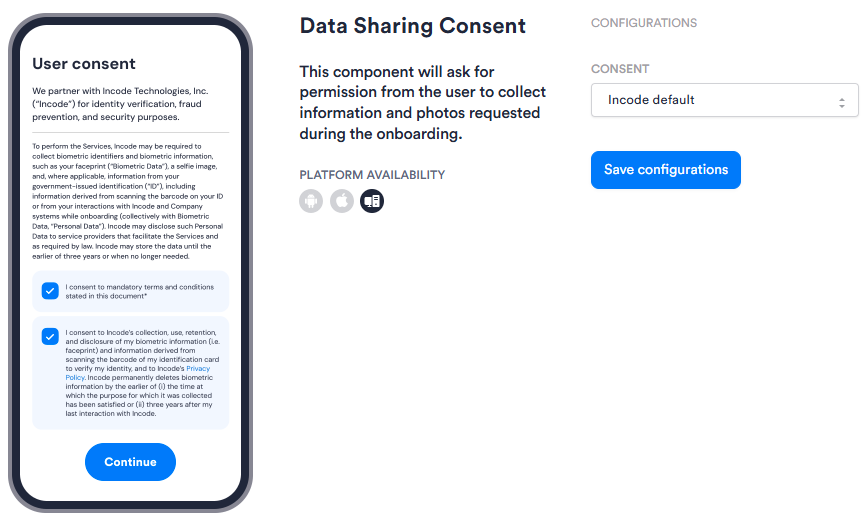
| Setting | Description |
|---|---|
| Consent | Use this drop-down to select the consent you want to use. |
If you are building a Workflow and want to offer the user more than one consent screen, you can add the module again and select a different consent from the drop-down. Repeat this for as many consents as you need.
Only one consent is supported when building a Flow.