The Custom Watchlist module screens the user's collected data, including biometric face data when available, against your organization's private watchlist of blocked or trusted users, and influences the Session outcome accordingly. It runs as a background process and isn't visible to the end user.
For an overview of this module and how it works, see Custom Watchlist.
Supported with:
✅ Workflows | ✅ Flows
Add Custom Watchlist to Workflows
- In the left menu, click Flow Builder > Workflows.
- Click New or select an existing Workflow.
- Ensure that the modules that collect user data, such as ID Capture and Face Capture, are in your Workflow.
- From the Processes list, drag and drop the Custom Watchlist module into the builder after the data-collection modules.
- You can click the three dots > Edit on the module node to open the Configuration Options panel and adjust settings as needed.
Add Custom Watchlist to Flows
- In the left menu, click Flow Builder > Flows.
- Click New or select an existing Flow.
- Ensure that the modules that collect user data, such as ID Capture and Face Capture, are in your Flow
- On the Select Modules tab, find the Custom Watchlist module and click Add.
- You can click Details & Configurations to open the Configuration Options panel and adjust settings as needed.
Configuration Options
This section details all the configuration options available for this module. After changing anything, click Save configurations before closing the configuration panel.
The options you see in your configuration may differ from those documented below. Contact your Incode representative for more information.
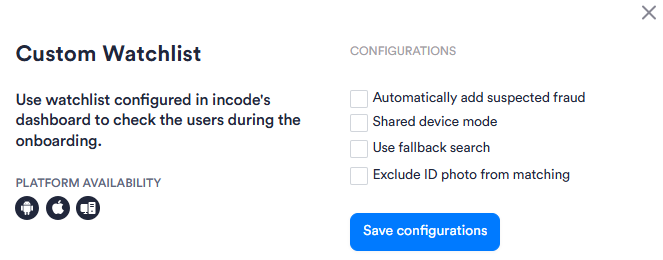
Expand to view Workflows Configuration
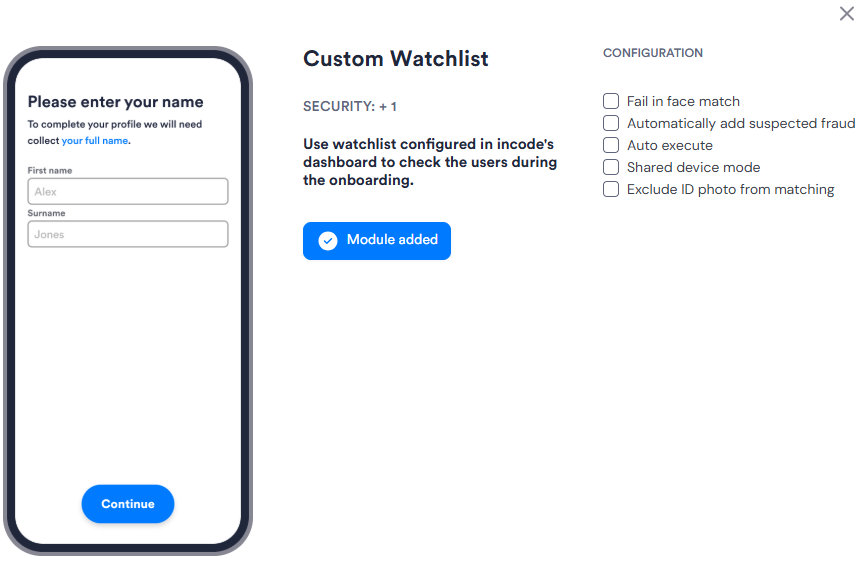
Expand to view Flows Configuration
| Setting | Description |
|---|---|
| Fail in face match Flows only |
When enabled, a biometric face match against a Blocklist entry directly fails the Session, regardless of other scoring. |
| Automatically add suspected fraud | When enabled, the system automatically adds a user to the Blocklist when fraud signals are detected: for example, if a face match fails or if there is a name or date of birth mismatch against a record already linked to the same biometric face template. Score updates apply to the current session and all future sessions. Historical sessions are not affected. |
| Auto execute Flows only |
When enabled, the module runs automatically after ID and face data have been collected, without requiring a manual trigger. |
| Shared device mode | When enabled, device-specific identifiers such as device hash are excluded from watchlist matching. Use this when users access the service on shared devices, such as a branch kiosk. |
| Use fallback search Workflows only |
When enabled, the module performs a fallback search if the primary matching pass does not return a result. |
| Exclude ID photo from matching | When enabled, the ID photo is not used when matching the user against watchlist entries. |
Add Conditions
Conditions let you branch the Workflow based on a result. Conditions are optional for Custom Watchlist, but you can add one or more Conditions after the module to route the session based on whether the user was found on a Blocklist or Allowlist.
To add a Condition for Custom Watchlist:
Drag a Condition into the builder from the left panel. Place it after the Custom Watchlist module.
In the first drop-down, find the Custom Watchlist section and select one of the conditions listed below:
Condition Description Watchlist birth date match If the user's date of birth matches a date of birth on a watchlist entry. Watchlist device hash match If the user's device fingerprint matches a device hash on a watchlist entry. This is a high-impact signal. When Shared device mode is enabled, device identifiers are excluded from matching. Watchlist phone match If the user's phone number matches a phone number on a watchlist entry. Watchlist name match If the user's name matches a name on a watchlist entry. Name matching is scored and fuzzy. Watchlist type The list classification of the matched entry: BLOCKLIST or ALLOWLIST. Include this condition to determine whether a match should restrict or trust the user. Blocklist matches reduce the session score; Allowlist matches increase it. Watchlist email match If the user's email address matches an email on a watchlist entry. Watchlist personal id number match If the user's personal ID number matches a personal ID number on a watchlist entry. Watchlist face match If the user's face matches a face template enrolled in the watchlist. If Fail in face match is enabled, a match against a Blocklist entry directly fails the session. Watchlist id number match If the user's document number matches an ID number on a watchlist entry. In the second drop-down, select an operator.
In the value field, enter or select the value to compare against.
Select the Yes path or No path radio button to route the Workflow when the Condition is met.
Click Save condition.