Conditions act as decision nodes that dynamically route users down different paths based on data collected during verification. You can use them to control which modules each user encounters.
Info
Note
You configure a Condition when you add it to a Workflow. This task assumes you are already building a Workflow.
The modules, operators, and values available in a Condition depend on which modules are in your Workflow. See each module's configuration documentation for the Condition options it supports.
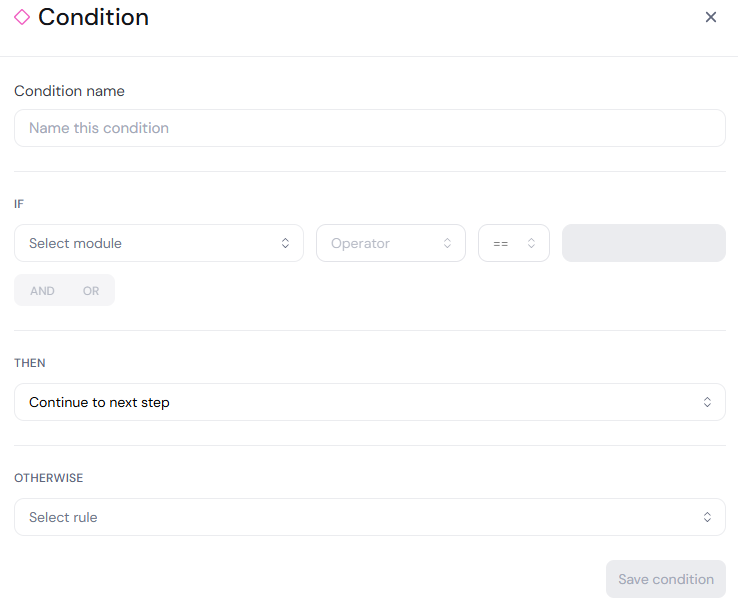
- From the Workflow builder menu, click Conditions. Drag the condition node onto the canvas.
- In the Condition panel, you can enter Condition name. The name appears on the condition node in the canvas.
- Under IF, define the expression that the condition evaluates:
- Use the Select module drop-down to select the data the condition is based on. Options are organized by the module the data comes from, and you can search or filter by module.
- Use the Operator drop-down to select an operator.
- Use the next drop-down to choose how the value should be compared, such as equals, does not equal, greater than, or less than.
- Use the next field to set the value for the expression. This field may be a drop-down or a text box, depending on the operator you selected.
- To add more rules to the condition:
- Click AND if all rules must be met.
- Click OR if any one rule must be met.
- Under THEN, select what happens when the expression evaluates to true. Options are:
- Continue to next step
- Pass session
- Fail session
- Warn session
- Manual review session
- Under OTHERWISE, select what happens when the expression evaluates to false. The options are the same as for THEN.
- Click Save condition.
Conditions on the canvas
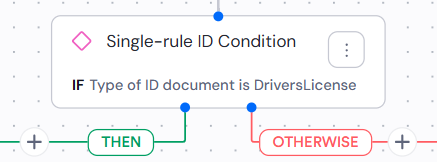
The condition node displays the IF expression beneath its name, and the THEN and OTHERWISE paths branch to the outcomes you selected:
If the condition has multiple rules, the node shows the first rule with a +n more indicator. Hover over the node to see the full expression.
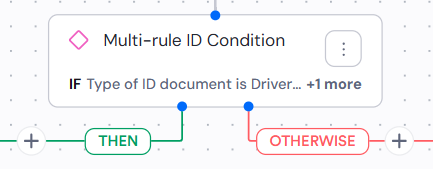
You can add more modules, processes, or conditions along either path to extend the user journey.