You can forward custom data when initializing your integrated Workflows. This option is available when the Workflow is initialized on your side via the /omni/start endpoint.
Custom Fields
The /omni/start endpoint accepts a key-value map in the customFields parameter. To define these key-value pairs, go to Configuration > General > Custom Fields.
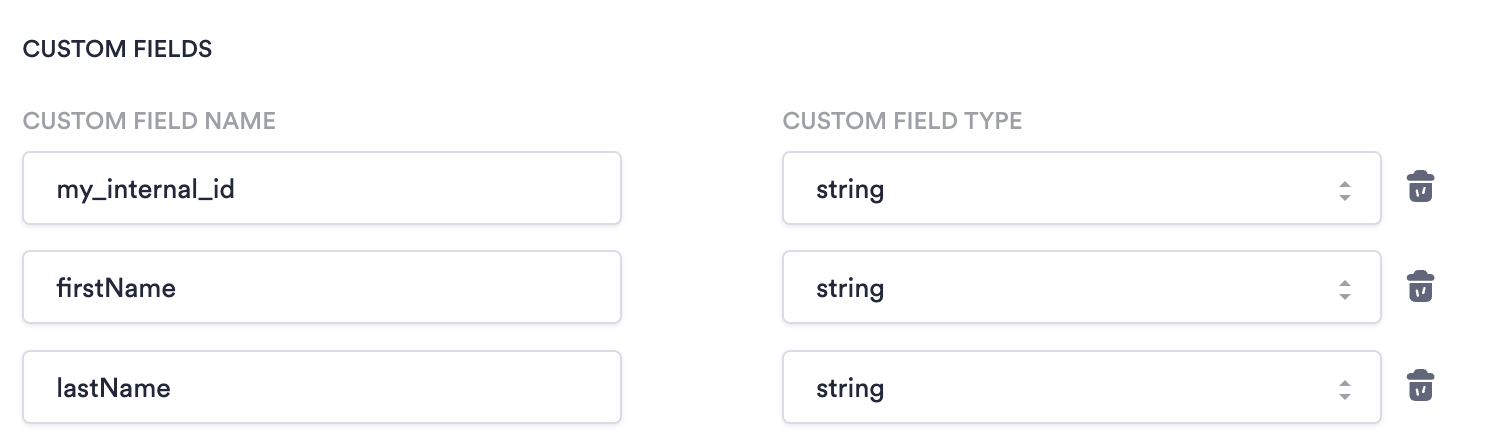
Custom fields appear on the single session view.
Use Cases
The two most common ways to use custom fields are crosschecking collected data and passing internal identifiers.
Crosscheck Data
If you already have a user's first and last name in your system, you can use that data to confirm that the person completing verification matches the existing user. To do this, set up a crosscheck between the data from the ID and the data in your system.
- Add a Process node to your Workflow and select Cross Check from the drop-down.
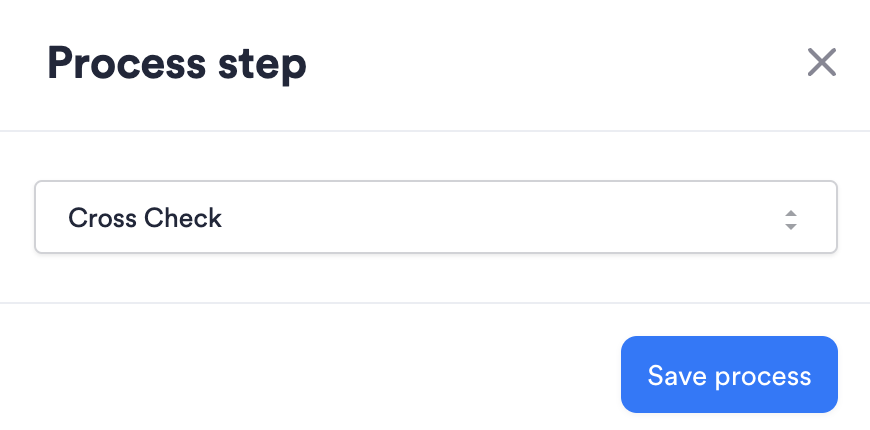
- Configure the Cross Check node:
- Click Add New Comparison.
- Enter a CrossCheck Name. Do not include special characters.
- Use the drop-downs to select sources and fields to compare. One source should be CUSTOM_FIELDS and the other is usually ID.
- Set the Comparison Severity. This determines the minimum match level required to pass.
- Click Save Comparison.
- Add more comparisons to the same Cross Check node as needed or return to the Workflow.
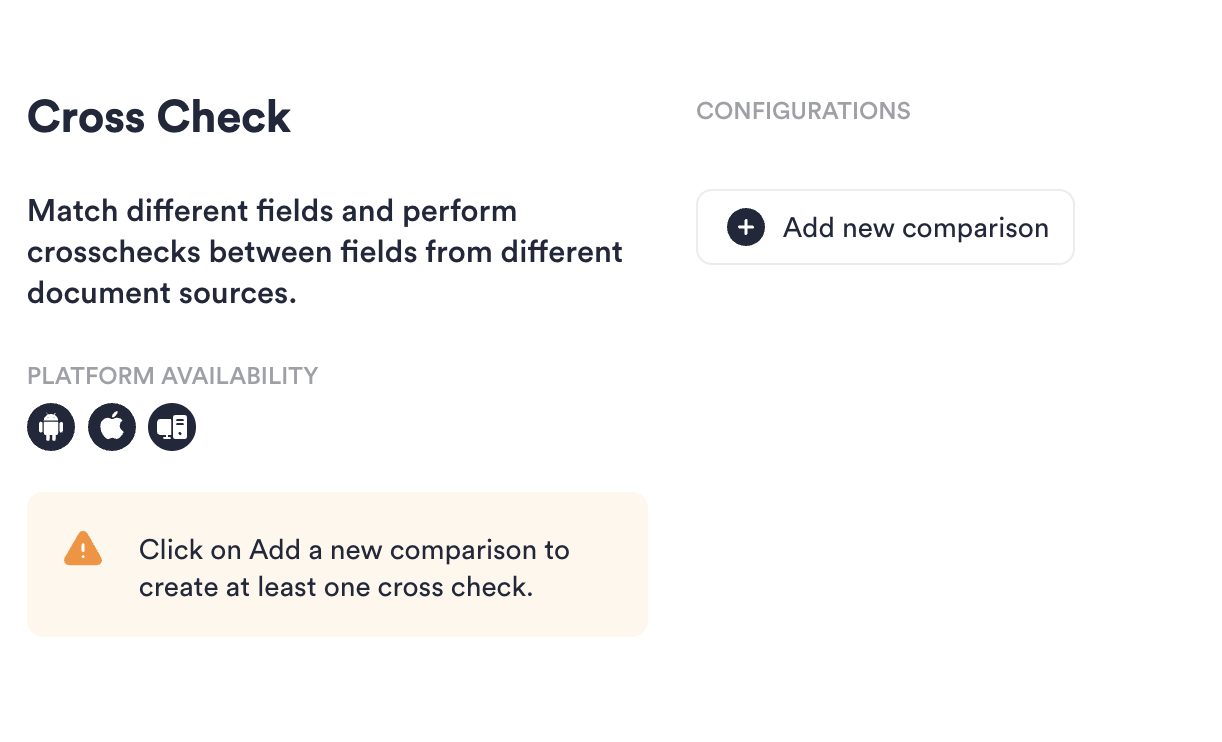
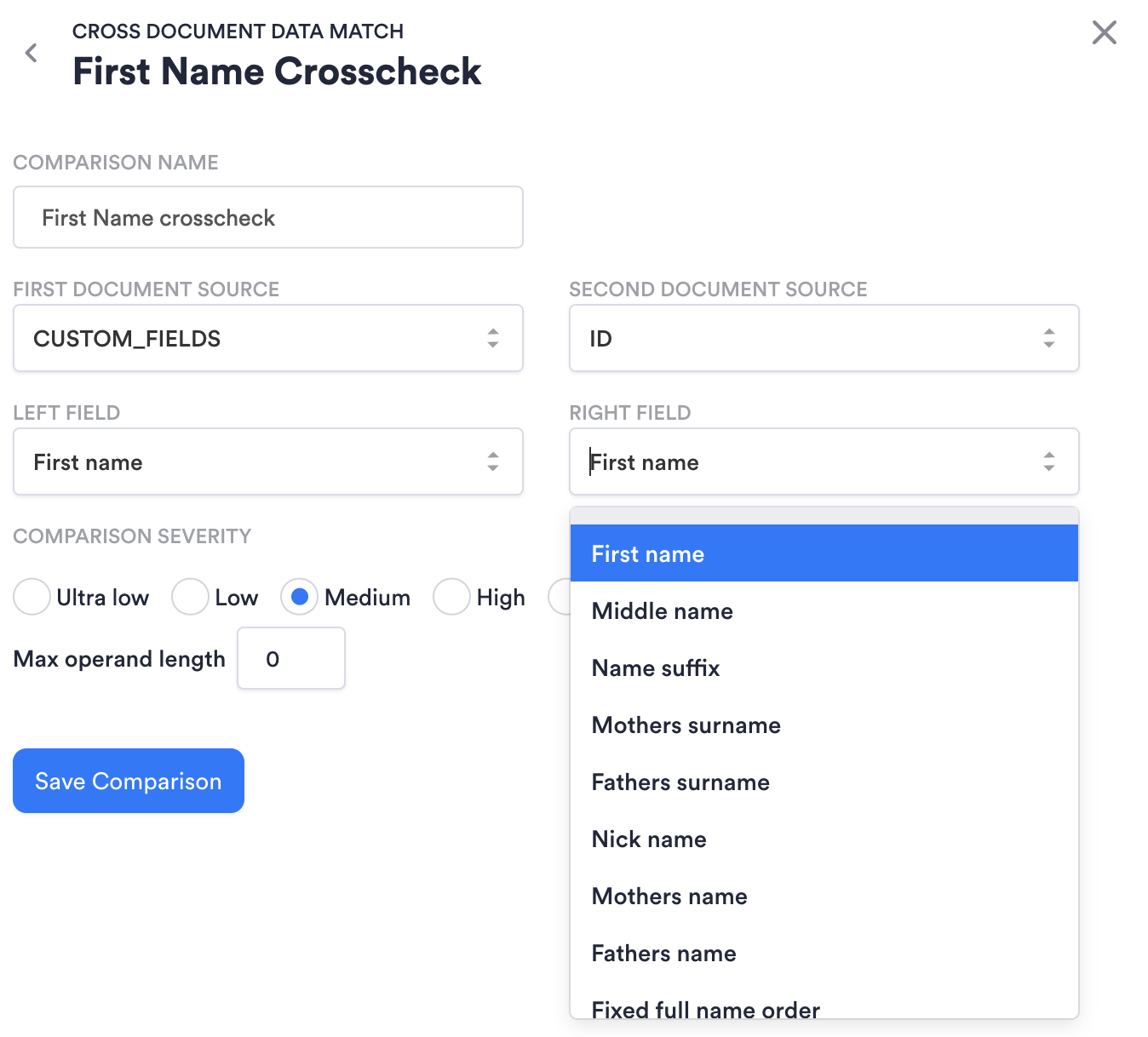
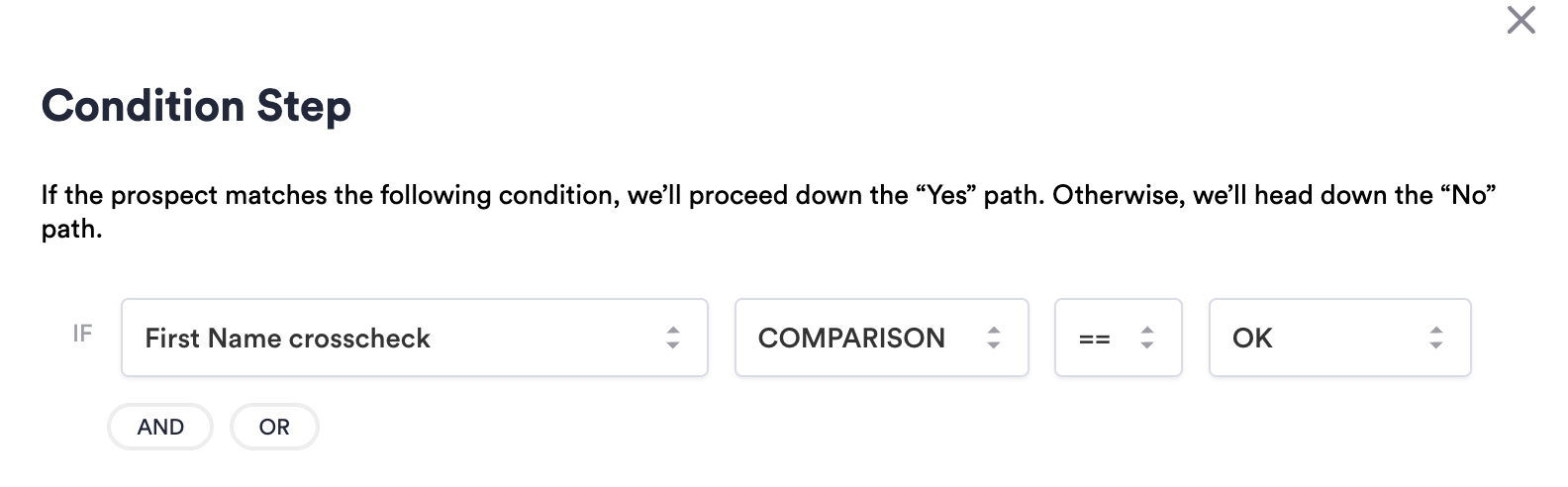
- Add a Condition to set the Yes and No paths after the Cross Check node. For example, if you are checking that first names match, configure the Condition so that a matching first name returns OK.
Pass Internal Identifiers, Tags, and Markers
Internal identifiers, tags, and markers distinguish different Sessions or connect with internal systems.
External Customer ID
To connect an Incode Session with your own Session, use the externalCustomerId parameter. This is an optional string parameter in the omni/start call.
Configuration ID
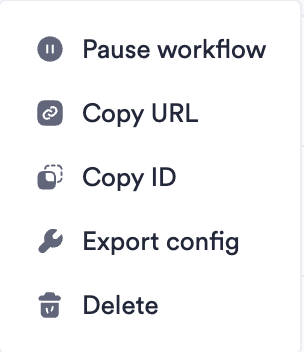
This is the ID of the Workflow the user will go through. To find it, go to the Workflows page in Dashboard, find the Workflow you want, and click ... > Copy ID in the Actions column.
Redirect URL
Override the Redirect URL from a Workflow's settings to redirect per user or group. Use the format: https://your.url.