The Qualified Electronic Signature module shows the user documents to sign, collects their consent, and captures a Qualified Electronic Signature (QES), the highest-assurance electronic signature under the EU eIDAS Regulation. A qualified certificate from a Qualified Trust Service Provider (QTSP) backs the signature, making it legally equivalent to a handwritten signature across EU member states.
For an overview of this module and how it works, see Qualified Electronic Signature.
Supported with:
✅ Workflows | ✅ Flows
Add Qualified Electronic Signature to Workflows
- In the left menu, click Flow Builder > Workflows.
- Click New or select an existing Workflow.
- From the Modules list, drag and drop the Qualified Electronic Signature module into the builder.
- You can click the three dots > Edit on the module node to open the Configuration Options panel and adjust settings as needed.
Add Qualified Electronic Signature to Flows
- In the left menu, click Flow Builder > Flows.
- Click New or select an existing Flow.
- On the Select Modules tab, find the Qualified Electronic Signature module and click Add.
- You can click Details & Configurations to open the Configuration Options panel and adjust settings as needed.
Configuration Options
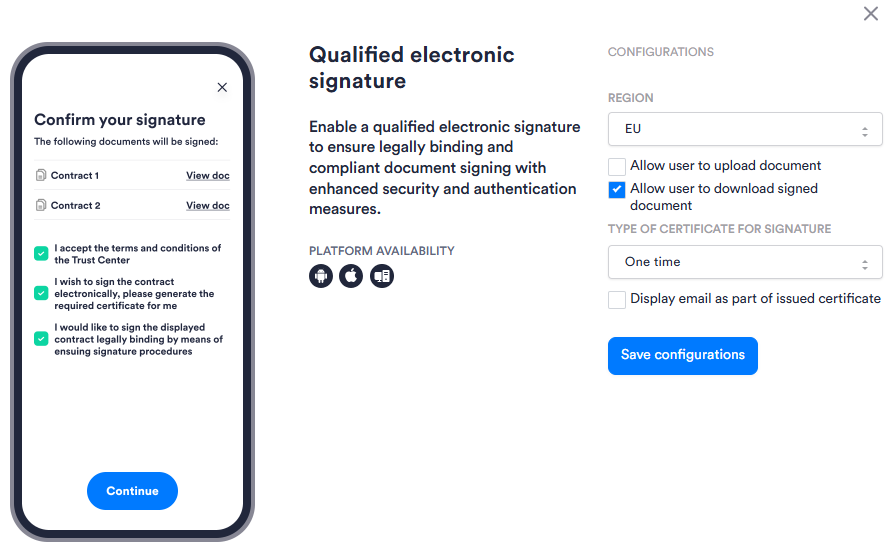
This section details all the configuration options available for this module. After changing anything, click Save configurations before closing the configuration panel.
The options you see in your configuration may differ from those documented below. Contact your Incode representative for more information.
| Setting | Description |
|---|---|
| Region | The region for which Qualified Electronic Signature is configured. Country-specific configurations are available. Contact your Incode representative for more information. |
| Allow user to upload document | Allows the user to upload a PDF document to sign. Disabled by default. |
| Allow user to download signed document | Allows the user to download the signed document. Enabled by default. |
| Type of certificate for signature | The certificate type used to generate the signature. Select one of the following: One time (single-use certificate), Short term (valid for multiple signers or documents), or Long term (extended validity). |
| Display email as part of issued certificate | Includes the user's email address in the issued certificate. Disabled by default. |