The NFC Scan module reads the secure NFC chip embedded in ICAO 9303-compliant travel documents, such as e-passports. It then returns the document holder's data, including the chip's portrait image.
For an overview of this module and how it works, see NFC Scan.
Supported with:
✅ Workflows | ✅ Flows
Add NFC Scan to Workflows
- In the left menu, click Flow Builder > Workflows.
- Click New or select an existing Workflow.
- From the Modules list, drag and drop the NFC Scan module into the builder.
- You can click the three dots > Edit on the module node to open the Configuration Options panel and adjust settings as needed.
Add NFC Scan to Flows
- In the left menu, click Flow Builder > Flows.
- Click New or select an existing Flow.
- On the Select Modules tab, find the NFC Scan module and click Add.
- You can click Details & Configurations to open the Configuration Options panel and adjust settings as needed.
Configuration Options
After making changes, click Save Configurations to apply them.
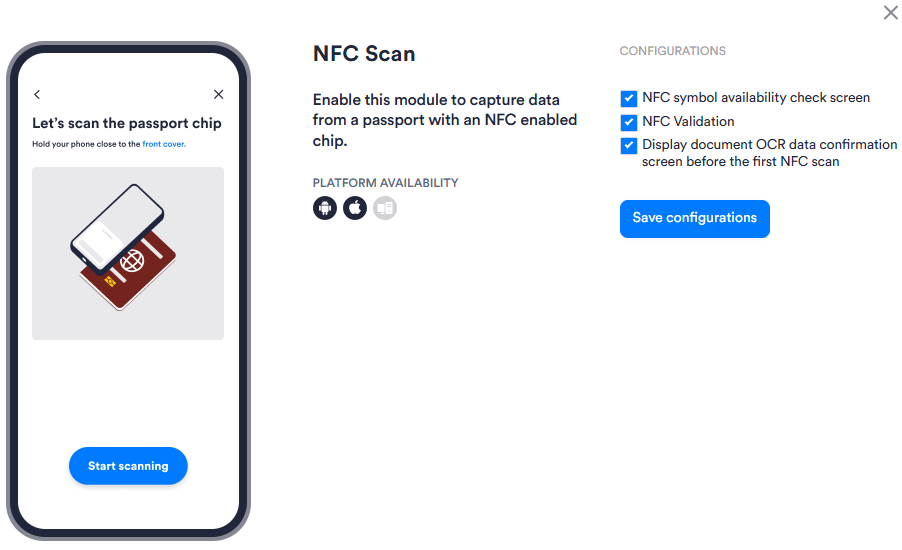
| Setting | Description |
|---|---|
| NFC symbol availability check screen | Displays a screen prompting the user to confirm that the NFC symbol is visible on their document before scanning begins. Enabled by default. |
| NFC Validation | Activates NFC chip data extraction for verification. Enabled by default. |
| Display document OCR data confirmation screen before the first NFC scan | Shows a screen displaying the data extracted via OCR for the user to confirm before the NFC scan is initiated. Enabled by default. |