The ID Validation module determines whether a submitted identity document is authentic. It analyzes the images captured by the ID Capture module against known parameters for the document type, runs a set of authenticity checks, and produces a validation result.
For an overview of this module and how it works, see ID Validation.
Supported with:
✅ Workflows | ✅ Flows
Add ID Validation to Workflows
- In the left menu, click Flow Builder > Workflows.
- Click New or select an existing Workflow.
- Ensure the ID Capture module is in your Workflow.
- From the Processes list, drag and drop the ID Validation module into the builder after the ID Capture module.
- You can click the three dots > Edit on the module node to open the Configuration Options panel and adjust settings as needed.
Add ID Validation to Flows
- In the left menu, click Flow Builder > Flows.
- Click New or select an existing Flow.
- On the Select Modules tab, ensure the ID Capture module is added to the Flow. After you add ID Capture, the ID Validation module becomes available.
- For ID Validation, click Add.
- You can click Details & Configurations to open the Configuration Options panel and adjust settings as needed.
Configuration Options
After making changes, click Save Configurations to apply them.
Expand to view Workflows Configuration Panel
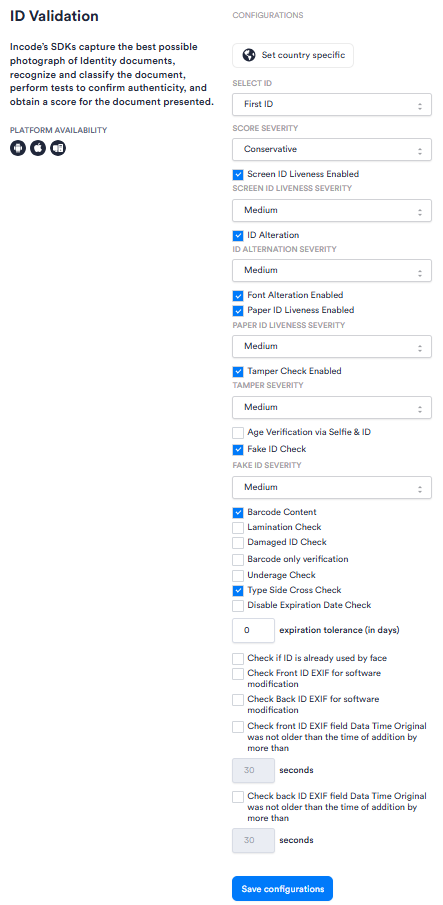
Expand to view Flows Configuration Panel
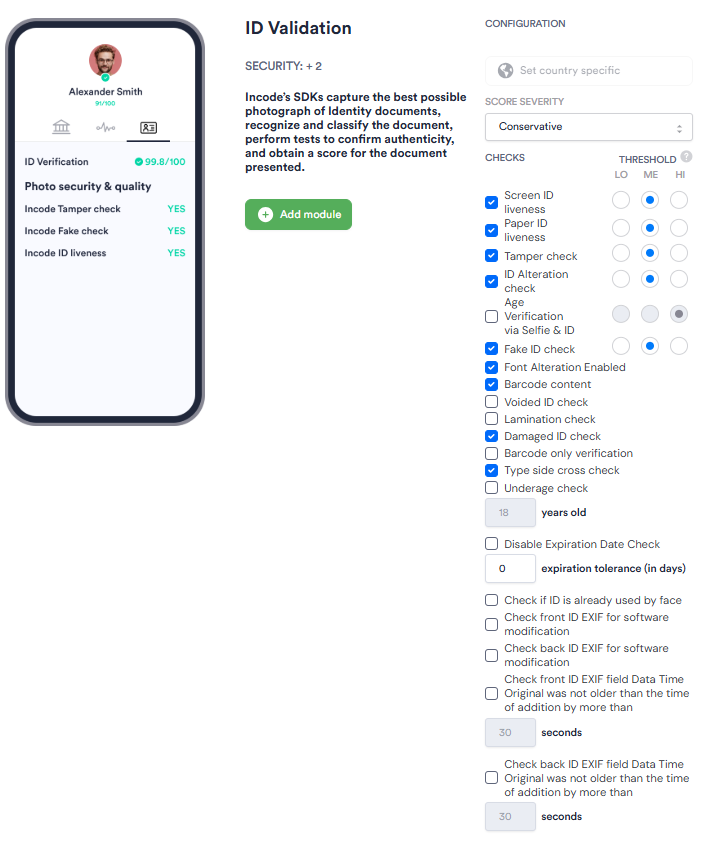
| Setting | Description |
|---|---|
| Set country specific | Restricts validation to documents issued by a specific country. Enable this when your use case requires country-level document validation. |
| Select ID Workflows only |
Specifies which ID in a multi-ID session this module applies to; for example, First ID or Second ID. Use this when your Workflow captures more than one identity document. |
| Score Severity | Sets the strictness threshold used to evaluate the overall validation score: Soft, Relaxed, Medium, or Conservative. |
| Screen ID Liveness Enabled | When enabled, checks whether the submitted ID was captured from a live physical document rather than a screen or digital display. |
| Screen ID Liveness Severity | Sets the strictness threshold for the Screen ID Liveness check: Low, Medium, or High. In Flows, this is the Threshold radio button. |
| ID Alteration | When enabled, checks whether the ID has been digitally or physically altered. |
| ID Alteration Severity | Sets the strictness threshold for the ID Alteration check: Low, Medium, or High. In Flows, this is the Threshold radio button. |
| Font Alteration Enabled | When enabled, checks for inconsistencies in font rendering that may indicate document tampering. |
| Paper ID Liveness Enabled | When enabled, checks whether the submitted ID is a physical paper or card document rather than a photocopy or printout. |
| Paper ID Liveness Severity | Sets the strictness threshold for the Paper ID Liveness check: Low, Medium, or High. In Flows, this is the Threshold radio button. |
| Tamper Check Enabled | When enabled, checks the document for signs of physical or digital tampering. |
| Tamper Severity | Sets the strictness threshold for the Tamper check: Low, Medium, or High. In Flows, this is the Threshold radio button. |
| Age Verification via Selfie & ID | When enabled, compares the apparent age of the user captured in a selfie against the date of birth on the submitted ID. |
| Fake ID Check | When enabled, checks whether the submitted document matches characteristics of known fake or fraudulent IDs. |
| Fake ID Severity | Sets the strictness threshold for the Fake ID Check: Low, Medium, or High. In Flows, this is the Threshold radio button. |
| Barcode Content | When enabled, reads and validates the barcode on the ID as part of the authenticity check. |
| Voided ID check Flows only |
When enabled, flags IDs that have been canceled. |
| Lamination Check | When enabled, checks for the presence of security lamination on the ID. |
| Damaged ID Check | When enabled, flags IDs that appear physically damaged in a way that may affect validation reliability. |
| Barcode only verification | When enabled, limits validation to barcode data only, skipping other visual checks. |
| Underage Check | When enabled, flags sessions where the date of birth on the submitted ID indicates the user is under the configured age threshold. |
| Type Side Cross Check | When enabled, verifies that the document type indicated on the front of the ID is consistent with data on the back. |
| Disable Expiration Date Check | When enabled, skips validation of the ID's expiration date. Use this to accept expired documents. |
| Expiration tolerance (in days) | The number of days past a document's expiration date that the system still accepts as valid. Default: 0. |
| Check if ID is already used by face | When enabled, checks whether the identity document has previously been submitted in a session associated with a different face. |
| Check Front ID EXIF for software modification | When enabled, inspects EXIF metadata on the front ID image to detect signs that the image was digitally modified using software. |
| Check Back ID EXIF for software modification | When enabled, inspects EXIF metadata on the back ID image to detect signs that the image was digitally modified using software. |
| Check front ID EXIF field Data Time Original was not older than the time of addition by more than | When enabled, validates that the front ID image's EXIF timestamp is within an acceptable window of the time it was submitted. The time window is set in seconds. The default is 30 seconds. |
| Check back ID EXIF field Data Time Original was not older than the time of addition by more than | When enabled, validates that the back ID image's EXIF timestamp is within an acceptable window of the time it was submitted. The time window is set in seconds. The default is 30 seconds. |