The ID Capture module captures the front and back of a government-issued ID, with auto-capture and quality checks, and produces clean images for processing. It also allows users to submit a digital ID they already have saved in their device's wallet (such as Apple or Google Wallet).
For an overview of this module and how it works, see ID Capture.
Supported with:
✅ Workflows | ✅ Flows
Add ID Capture to Workflows
- In the left menu, click Flow Builder > Workflows.
- Click New or select an existing Workflow.
- From the Modules list, drag and drop the ID Capture module into the builder.
- You can click the three dots > Edit on the module node to open the Configuration Options panel and adjust settings as needed.
Add ID Capture to Flows
- In the left menu, click Flow Builder > Flows.
- Click New or select an existing Flow.
- On the Select Modules tab, find the ID Capture module and click Add.
- You can click Details & Configurations to open the Configuration Options panel and adjust settings as needed.
Configuration Options
This section details all the configuration options available for this module. After changing anything, click Save configurations before closing the configuration panel.
The options you see in your configuration may differ from those documented below. Contact your Incode representative for more information.
General
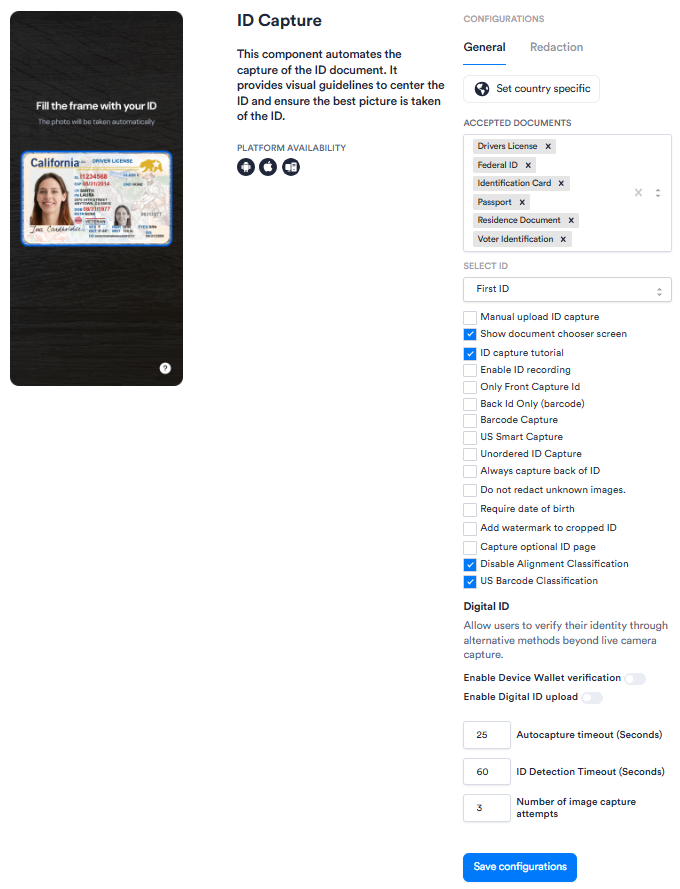
Expand to view Workflows Configuration
Expand to view Flows Configuration
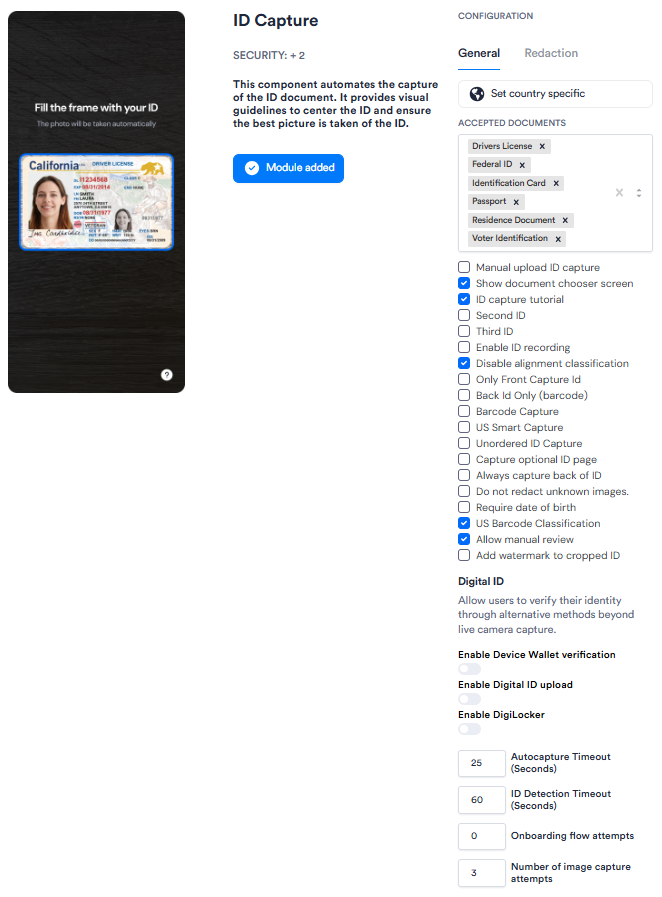
| Setting | Description |
|---|---|
| Set country specific | Restricts accepted document types to those issued by a specific country. Enable this when your use case requires country-level document validation. |
| Manage digital IDs | Opens a modal that allows you to select acceptable digital IDs for this flow; see Manage digital IDs below for instructions. This allows users to verify their identity using a digital ID stored in their device wallet (such as Apple Wallet or Google Wallet) as an alternative to camera capture. See Digital ID Verification and Supported Digital IDs for more information about this capability. |
| Accepted Documents | The document types that users can present for ID capture. Select one or more from the available options (e.g., Drivers License, Passport, Federal ID). Only the selected document types will be accepted during the capture flow. |
| Select ID Workflows only |
Specifies which ID in a multi-ID session this module applies to (First ID or Second ID). Use this when your Workflow captures more than one identity document. |
| Second ID Flows only |
When enabled, designates this ID Capture module as the second ID in a multi-ID session. Use this when your Flow captures more than one identity document. |
| Third ID Flows only |
When enabled, designates this ID Capture module as the third ID in a multi-ID session. Use this when your Flow captures more than two identity documents. |
| Manual upload ID capture | When enabled, allows users to upload an image of their ID from their device instead of capturing it with the camera. |
| Show document chooser screen | When enabled, displays a screen prompting the user to select their document type before capture begins. Recommended when multiple document types are accepted. |
| ID capture tutorial | When enabled, displays an instructional screen before the capture step to guide the user through the process. |
| Enable ID recording | When enabled, records the ID capture session for review purposes. |
| Only Front Capture Id | When enabled, captures only the front of the ID, skipping the back. Use this for document types that do not require a back-side scan. |
| Back Id Only (barcode) | When enabled, captures only the back of the ID and reads the barcode. Use this when only barcode data from the back of the ID is required. |
| Barcode Capture | When enabled, activates barcode scanning during ID capture. |
| US Smart Capture | When enabled, uses enhanced capture logic optimized for US-issued identity documents. |
| Unordered ID Capture | When enabled, allows the front and back of the ID to be captured in any order, rather than requiring front first. |
| Always capture back of ID | When enabled, always requires capture of the back of the ID, regardless of document type. |
| Do not redact unknown images. | When enabled, images that are not recognized are not redacted. |
| Require date of birth | When enabled, users will be prompted to scan the back of their ID if date of birth is not detected on the front side. This applies even when the flow is configured as front-only capture, and ensures date of birth is always extracted regardless of document template. |
| Add watermark to cropped ID | When enabled, watermark text is added to cropped ID images to indicate they have been processed. |
| Capture optional ID page | When enabled, prompts the user to capture an additional optional page of the ID (e.g., a visa page). |
| Disable Alignment Classification | When enabled, turns off alignment classification during capture, which checks that the ID is properly aligned before accepting the image. Disabling this may speed up capture but can reduce image quality. |
| US Barcode Classification | When enabled, uses barcode classification logic specific to US-issued documents. |
| Allow manual review Flows only |
|
| Enable Digital ID upload | When enabled, allows users to submit a digital ID file as an alternative to live camera capture. See Supported Digital IDs for supported schemes by region. |
| Autocapture timeout (Seconds) | The number of seconds the camera will attempt automatic capture before timing out. Default: 25. If autocapture does not succeed within this window, the user is prompted to retry or switch to manual capture. |
| ID Detection Timeout (Seconds) | The number of seconds the system will attempt to detect an ID in the camera frame before timing out. Default: 60. |
| Onboarding flow attempts Flows only |
The number of onboarding attempts after which the user drops off. Default: 0. |
| Number of image capture attempts | The maximum number of times a user can attempt to capture their ID before the session ends. Default: 3. |
Manage digital IDs
This modal allows you to select acceptable digital IDs for this flow. This allows users to verify their identity using a digital ID stored in their device wallet (such as Apple Wallet or Google Wallet) as an alternative to camera capture. See Digital ID Verification and Supported Digital IDs for more information about this capability.
Click Manage digital IDs to open the following modal:
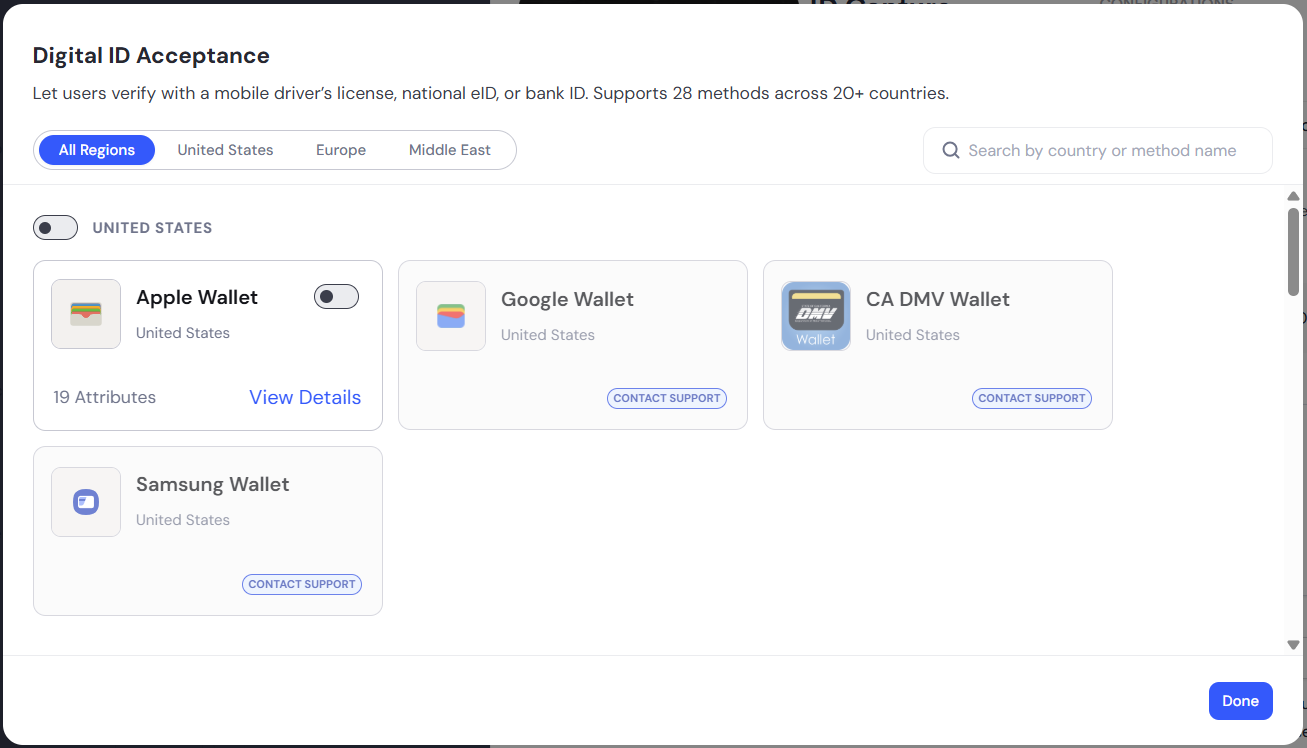
- Find the wallet type you want to enable for the flow. You can search by name or filter by region.
- Click the toggle to enable the wallet. Some wallets require you to contact support to enable them.
- You can click View Details on an available wallet to select which data points to collect. Users will only be asked to share what you choose.
- Click Done.
Redaction
The Redaction tab lets you define which fields should be redacted on captured identity documents, configured per country. Each country entry specifies the document type, the document subtype (the specific version or format of that document), the issuing year (which identifies the document version and determines which fields are available for redaction), and the fields to redact. You can add multiple country configurations to a single session using the Add country button.
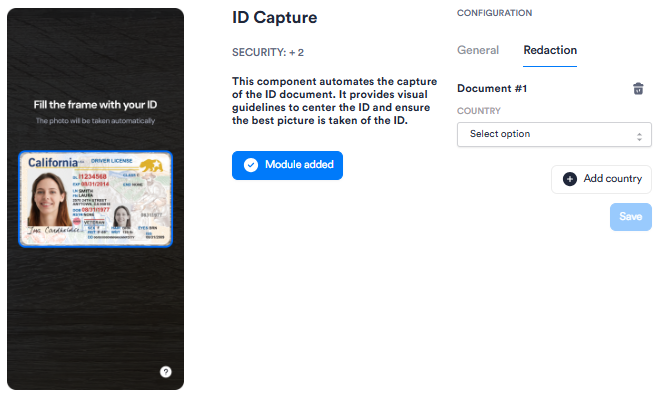
The following countries are available for redaction configuration. All country entries use State: ALL.
Norway
| Document type | Subtype | Issuing year | Fields to be redacted |
|---|---|---|---|
| Identification Card | IDENTIFICATION_CARD |
2015 | creditCardNumber, ccv |
Indonesia
| Document type | Subtype | Issuing year | Fields to be redacted |
|---|---|---|---|
| Identification Card | IDENTIFICATION_CARD |
2000 | documentNumber |
| Passport | NATIONAL_PASSPORT |
2013, 2015, 2022 | documentNumber |
Germany
| Document type | Subtype | Issuing year | Fields to be redacted |
|---|---|---|---|
| Identification Card | IDENTIFICATION_CARD |
2007 | documentNumber |
| Identification Card | IDENTIFICATION_CARD |
2010, 2021 | documentNumber, refNumber |
| Identification Card | TEMP_GERMAN_IDCARD |
2004 | documentNumber |
| Passport | NATIONAL_PASSPORT |
2007, 2017 | documentNumber |
| Residence Document | RESIDENCE_PERMIT |
2011, 2019 | documentNumber, refNumber |
| Residence Document | FICTIONAL_CERTIFICATE |
2020, 2024 | documentNumber |
Hong Kong
| Document type | Subtype | Issuing year | Fields to be redacted |
|---|---|---|---|
| Passport | NATIONAL_PASSPORT |
2005 | documentNumber, personalNumber |
| Residence Document | PERMANENT_RESIDENT_IDENTITY |
2003, 2018 | documentNumber |
Netherlands
| Document type | Subtype | Issuing year | Fields to be redacted |
|---|---|---|---|
| Identification Card | DIPLOMATIC_IDENTIFICATION_CARD |
2016 | personalNumber |
| Identification Card | IDENTIFICATION_CARD |
2014 | personalNumber |
| Passport | NATIONAL_PASSPORT |
2006, 2014 | personalNumber |
| Residence Document | RESIDENCE_PERMIT |
2014, 2020, 2022 | personalNumber |
| Drivers License | DRIVER_LICENSE |
1990, 2006, 2013, 2018, 2025 | personalNumber |
Japan
| Document type | Subtype | Issuing year | Fields to be redacted |
|---|---|---|---|
| Identification Card | IDENTIFICATION_CARD |
2020 | personalNumber |
Thailand
| Document type | Subtype | Issuing year | Fields to be redacted |
|---|---|---|---|
| Identification Card | IDENTIFICATION_CARD |
2001 | religion |
Singapore
| Document type | Subtype | Issuing year | Fields to be redacted |
|---|---|---|---|
| Identification Card | IDENTIFICATION_CARD |
2001 | documentNumber |
| Passport | NATIONAL_PASSPORT |
2005, 2017 | documentNumber, personalNumber |
| Residence Document | RESIDENCE_PERMIT |
2005 | documentNumber |
| Drivers License | DRIVER_LICENSE |
2002 | documentNumber |
| Military | MILITARY_IDENTIFICATION_CARD |
2010 | documentNumber |
India
| Document type | Subtype | Issuing year | Fields to be redacted |
|---|---|---|---|
| Identification Card | IDENTIFICATION_CARD |
2005, 2010, 2015 | documentNumber |
| Identification Card | MASKED_IDENTIFICATION_CARD |
2005, 2015 | documentNumber |
Korea, Republic of
| Document type | Subtype | Issuing year | Fields to be redacted |
|---|---|---|---|
| Identification Card | IDENTIFICATION_CARD |
2000 | personalNumber |
| Passport | NATIONAL_PASSPORT |
2008, 2022 | documentNumber, personalNumber |
| Residence Document | RESIDENCE_PERMIT |
2018, 2023 | documentNumber |
| Drivers License | DRIVER_LICENSE |
2000, 2020 | documentNumber, personalNumber |