The Face Match module compares the user's selfie against their ID photo, their NFC chip photo, or both in a 3-way match. It then returns a confidence score.
For an overview of this module and how it works, see Face Match.
Supported with:
✅ Workflows | ✅ Flows
Add Face Match to Workflows
- In the left menu, click Flow Builder > Workflows.
- Click New or select an existing Workflow.
- From the Processes list, drag and drop the Face Match module into the builder.
- You can click the three dots > Edit on the module node to open the Configuration Options panel and adjust settings as needed.
Add Face Match to Flows
- In the left menu, click Flow Builder > Flows.
- Click New or select an existing Flow.
- On the Select Modules tab, find the Face Match module and click Add.
- You can click Details & Configurations to open the Configuration Options panel and adjust settings as needed.
Configuration Options
This section details all the configuration options available for this module. After changing anything, click Save configurations before closing the configuration panel.
The options you see in your configuration may differ from those documented below. Contact your Incode representative for more information.
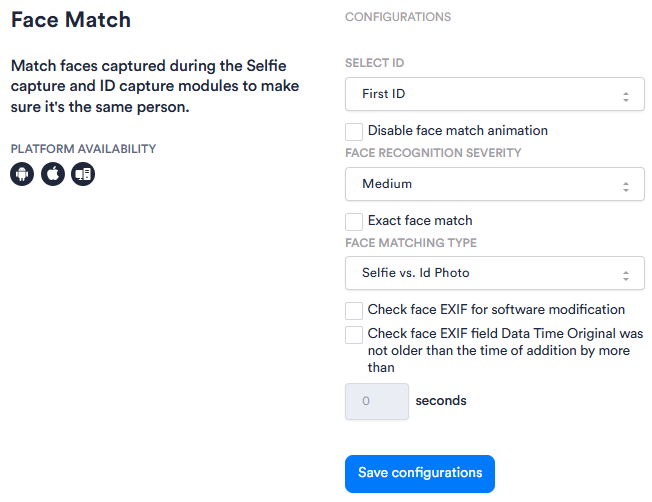
| Setting | Description |
|---|---|
| Select ID | Specifies which ID in a multi-ID session this module applies to (First ID or Second ID). Use this when your Workflow or Flow captures more than one identity document. |
| Disable face match animation | When enabled, suppresses the animation shown to the user during face matching. |
| Face Recognition Severity | Sets the strictness of face recognition matching, with options Low, Medium, and High. A higher severity requires a closer match between the compared faces. |
| Exact face match | |
| Face Matching Type | The pair of images compared during face matching. Options: Selfie vs. Id Photo, Selfie vs. NFC Photo, and Selfie vs. ID vs. NFC Photo. |
| Check face EXIF for software modification | When enabled, inspects the EXIF metadata of the captured face image for signs that it was modified by editing software. |
| Check face EXIF field Data Time Original was not older than the time of addition by more than | When enabled, checks that the EXIF DateTimeOriginal field on the captured face image is no older than the configured number of seconds before submission. |