The Face Capture module captures a user’s face with their device’s camera and runs configurable liveness, face recognition, and image quality checks. It can enroll new users so their face can be matched against an ID photo or used for later authentication. It can also log in returning users using 1:1 or 1:N face authentication.
For an overview of this module and how it works, see Face Capture.
Supported with:
✅ Workflows | ✅ Flows
Add Face Capture to Workflows
- In the left menu, click Flow Builder > Workflows.
- Click New.
- From the Modules list, drag and drop the Face Capture module into the builder.
- You can click the three dots > Edit on the module node to open the Configuration Options panel and adjust settings as needed.
Add Face Capture to Flows
- In the left menu, click Flow Builder > Flows.
- Click New.
- On the Select Modules tab, find the Face Capture module and click Add.
- You can click Details & Configurations to open the Configuration Options panel and adjust settings as needed.
Configuration Options
This section details all the configuration options available for this module. After changing anything, click Save configurations before closing the configuration panel.
The options you see in your configuration may differ from those documented below. Contact your Incode representative for more information.
Several liveness and validation checks use a threshold scale (Ultra Low, Low, Medium, High, Ultra High) that controls how strictly the check is applied. A lower threshold matches faces with a higher degree of anomalies (more permissive); a higher threshold matches faces with a lower degree of anomalies (more strict).
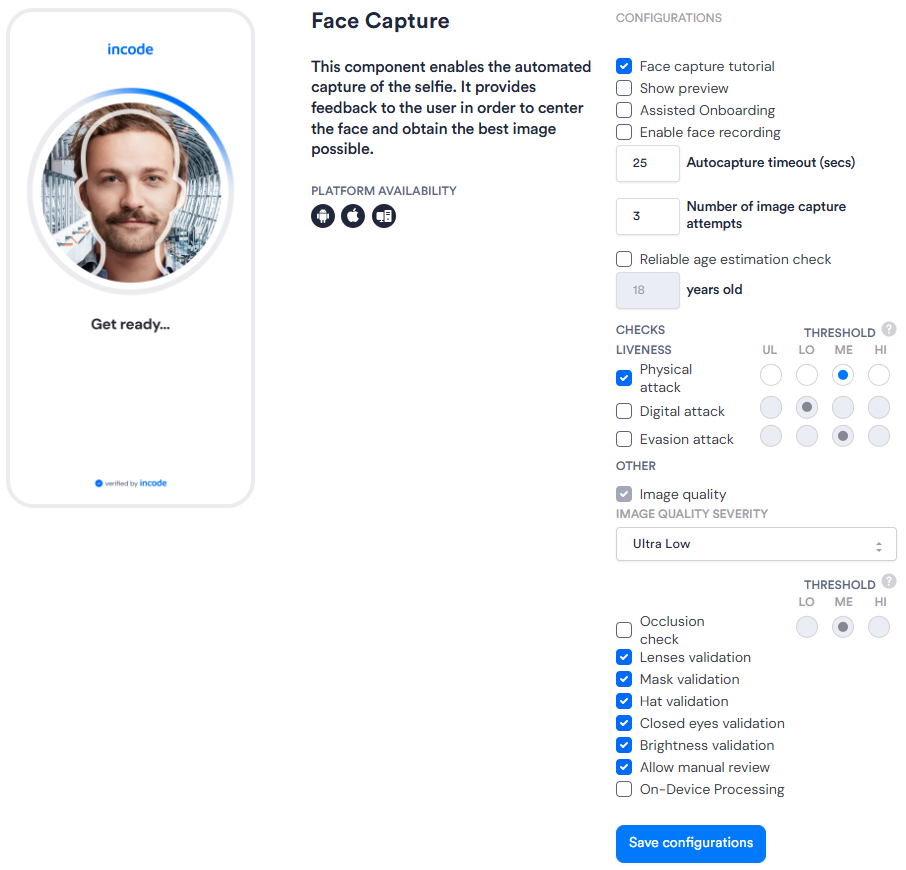
| Setting | Description |
|---|---|
| Face capture tutorial | When enabled, displays an instructional screen before the capture step to guide the user through the process. |
| Show preview | When enabled, shows the user a preview of the captured face or selfie. |
| Assisted Onboarding | When enabled, allows face capture using the rear camera. |
| Enable face recording | When enabled, records the face capture session for review purposes. |
| Autocapture timeout (Seconds) | The number of seconds the camera will attempt automatic capture before timing out. Default: 25. If autocapture does not succeed within this window, the user is prompted to retry or switch to manual capture. |
| Number of image capture attempts | The maximum number of times a user can attempt to capture their face before the session ends. Default: 3. |
| Reliable age estimation check | When enabled, estimates the user's age from the captured selfie and checks it against a minimum age threshold (set in the adjacent "years old" field; default 18). |
| Physical attack (Liveness) | When enabled, checks the selfie for signs of a physical presentation attack (e.g., printed photo, mask). Threshold sets the strictness of the check. |
| Digital attack (Liveness) | When enabled, checks the selfie for signs of a digital presentation attack (e.g., a face displayed on a screen). Threshold sets the strictness of the check. |
| Evasion attack (Liveness) | When enabled, checks the selfie for signs that the user is attempting to evade detection (e.g., obscuring or distorting their face). Threshold sets the strictness of the check. |
| Image quality | When enabled, validates that the captured image meets a minimum quality standard. Severity is configured in the Image Quality Severity dropdown, with options Ultra Low, Low, Medium, High, and Ultra High. |
| Occlusion check | When enabled, checks whether the user's face is partially obscured in the captured image. Threshold sets the strictness of the check. |
| Lenses validation | When enabled, checks whether the user is wearing glasses or contact lenses that may interfere with capture. |
| Mask validation | When enabled, checks whether the user is wearing a face mask. |
| Hat validation | When enabled, checks whether the user is wearing a hat or other headwear that may obscure the face. |
| Closed eyes validation | When enabled, checks whether the user's eyes are closed in the captured image. |
| Brightness validation | When enabled, checks whether the image brightness is within an acceptable range. |
| Allow manual review | When enabled, sessions that fail face capture after all attempts are routed for manual review instead of being rejected outright. |
| On-Device Processing | When enabled, performs face capture processing on the user's device rather than server-side. |