This API allows a B2B client to start a new onboarding session for a specific user under a specific integration. The API returns a generated onboarding link that can be delivered to the end user. The API is authenticated using an OAuth 2.0 Client Credentials access token.
Security Model
The B2B Request New Onboarding API uses the OAuth 2.0 Client Credentials grant type — a server-to-server authentication pattern intended for trusted backend systems. Unlike the Authorization Code flow, this grant does not involve a user-facing login step. Instead, your server authenticates directly using a client_id and client_secret to obtain an access token, which is then used to authorize API requests.
A Client Credentials integration is created automatically for organizations that have Integration Ecosystem enabled.
Find the Client ID & Client Secret
To view the integration details in Dashboard:
- In the left navigation, go to Integrations.
- On the Custom tab, click Default client credentials integration.
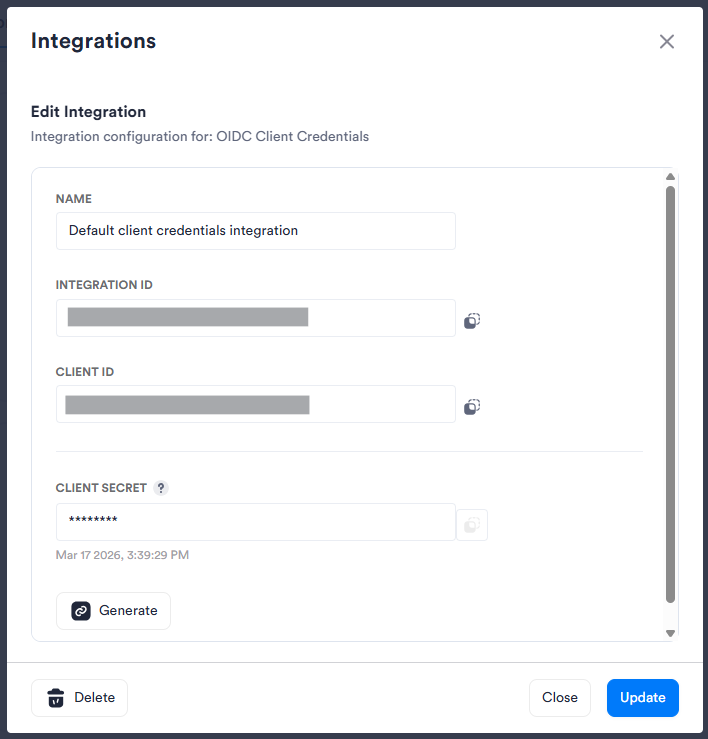
- Copy the Client ID to use in the access token request.
- Click Generate to create the Client Secret. Copy it to use in the access token request. The secret is shown and copyable only once. Store it securely in a secrets manager or vault. If lost, you must generate a new one.
Step 1: Obtain an Access Token
Before calling the B2B onboarding endpoint, your backend must obtain a Bearer token from the Incode authorization server using the Client Credentials grant.
Endpoint: POST {auth-server-url}/oauth2/token
Environment URLs
| Environment | Auth Server URL |
|---|---|
| Demo | https://auth.demo.incode.com |
| SaaS / Production | https://auth.incode.com |
Request Parameters
| Parameter | Value | Notes |
|---|---|---|
grant_type |
client_credentials |
|
client_id |
{client_id} |
Find the Client ID |
client_secret |
{client_secret} |
Generate the Client Secret |
scope |
openid |
Example Request
curl -X POST {auth-server-url}/oauth2/token \
  -H "Content-Type: application/x-www-form-urlencoded" \
  -d "grant_type=client_credentials" \
  -d "client_id={client_id}" \
  -d "client_secret={client_secret}" \
  -d "scope=openid"
A successful response returns an access_token to be used as a Bearer token in Step 2.
Step 2: Call the B2B Request New Onboarding Endpoint
Use the access token obtained in Step 1 to call the onboarding endpoint.
Endpoint: POST {base-api-url}/omni/b2b/onboarding/request-new
Environment URLs
| Environment | Base API URL |
|---|---|
| Demo | https://demo-api.incodesmile.com |
| SaaS / Production | https://saas-api.incodesmile.com |
Headers
Authorization: Bearer <access_token>Content-Type: application/jsonx-api-key: {api_key}
Request Body
| Field | Required | Description | Example |
|---|---|---|---|
integrationReference |
✅ Yes | Unique identifier of the integration, as configured in Incode Dashboard. | "int_b2b_prod_001" |
loginHint |
✅ Yes | User identifier (email, username, phone, etc.). Employee-based integrations: • An existing employee record with the provided loginHint must already exist.• If no matching employee is found, the request will fail. Candidate-based integrations: • If no existing candidate is found with the provided loginHint, a new candidate will be created automatically. |
"john.doe@clientcompany.com" |
notification |
✅ Yes | Notification configuration object. | See below |
notification.type |
✅ Yes | Must be SMS, EMAIL, or URL. |
|
notification.email |
Conditional | Required if type is EMAIL. |
"john.doe@clientcompany.com" |
notification.phone |
Conditional | Required if type is SMS. |
"+14155552671" |
applicantId |
Optional | This should only be provided when requesting onboarding to an existing candidate. | "app_987654321" |
name |
Conditional | Applicant full name. New candidates must have a name. | "John Doe" |
meetingLink |
Optional | Custom meeting or session URL. | "https://meet.company.com/abc" |
linkValidityInMinutes |
Optional | How long the onboarding link remains valid. If omitted, system default validity of 15 minutes applies. You can configure a different value in Dashboard at Configuration > General > Onboarding link duration. |
60 |
See Migrating from Workforce for a table that maps field names used in Workforce to field names used here.
Example Request Body
{
  "integrationReference": "int_b2b_prod_001",
  "loginHint": "john.doe@clientcompany.com",
  "meetingLink": "https://meet.clientcompany.com/session/abc123",
  "notification": {
    "type": "URL"
  }
}
Step 3: Handle the Response
Success Response
HTTP Status: 200 OK
Returned when a new onboarding session is successfully created and the onboarding link is generated.
Response Body Schema
{
  "url": "string"
}
Example Response
{
  "url": "https://url/workflow/69a8a52d8cc9700f429f9565?uuid=e22199bf-246e-4761-99e1-873cef74fc52&url_uuid=a5fe50d9-5f8e-4cd1-bcd2-189fe08c845e"
}
Deliver this URL to the end user via your preferred channel (email, SMS, in-app redirect, etc.).
Error Responses
HTTP Status: 400 Bad Request
Returned when a required field is missing or has an invalid value.
Response Body Schema
{
  "timestamp": {timestamp},
  "status": {status},
  "error": {error},
  "message": {message},
  "path": "/omni/b2b/onboarding/request-new"
}
Example Error Responses
Missing or invalid loginHint:
{
  "timestamp": 1773781956561,
  "status": 400,
  "error": "Bad Request",
  "message": "Login hint be a non-empty string",
  "path": "/omni/b2b/onboarding/request-new"
}
Missing phone number when notification.type is SMS:
{
  "timestamp": 1773781994221,
  "status": 400,
  "error": "Bad Request",
  "message": "Phone must be provided when notification type is SMS",
  "path": "/omni/b2b/onboarding/request-new"
}
New candidate missing a name:
{
  "timestamp": 1773782210449,
  "status": 400,
  "error": "Bad Request",
  "message": "BadRequestException: New candidate must have name.",
  "path": "/omni/b2b/onboarding/request-new"
}
Migrating from Workforce
The table below maps deprecated Workforce request parameters to their Omni equivalents.
| Workforce field | Omni equivalent | Notes |
|---|---|---|
integrationId |
integrationReference |
Value format has changed — retrieve the new reference from the Omni Dashboard |
secret |
(removed) | Authentication is now handled via OAuth 2.0 Bearer token; no per-request secret needed |
loginHint |
loginHint |
Unchanged |
loginHintType |
(removed) | No longer required; type is inferred automatically |
correlationId |
externalCustomerId |
Surfaced in webhook payloads as externalCustomerId |
redirectUrl |
(removed) | Configure redirect behavior at the workflow level in the Omni Dashboard |
validityMinutes |
linkValidityInMinutes |
Renamed; same semantics |
givenNames + lastName |
name |
Combined into a single full name field |