This section provides a complete overview of all possible user-facing states within the Electronic Signature experience.
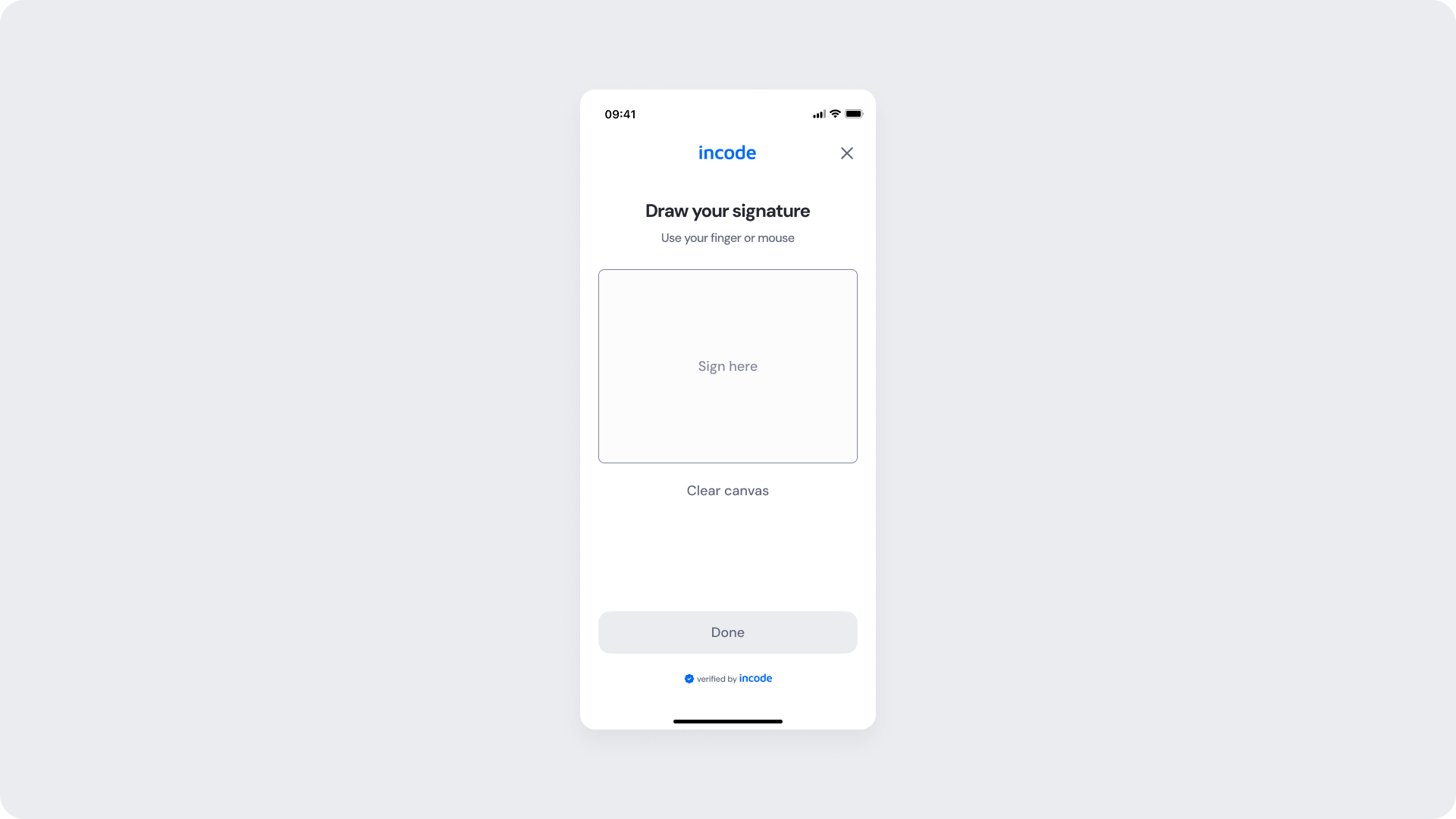
Signature Canva
Entry point of the Electronic Signature module.
This screen presents the user with a blank drawing area where they can capture their signature using a finger or mouse. The canvas includes a "Sign here" placeholder to guide the user, a "Clear canvas" option to reset any input, and a "Done" button that remains disabled until a signature stroke is detected.
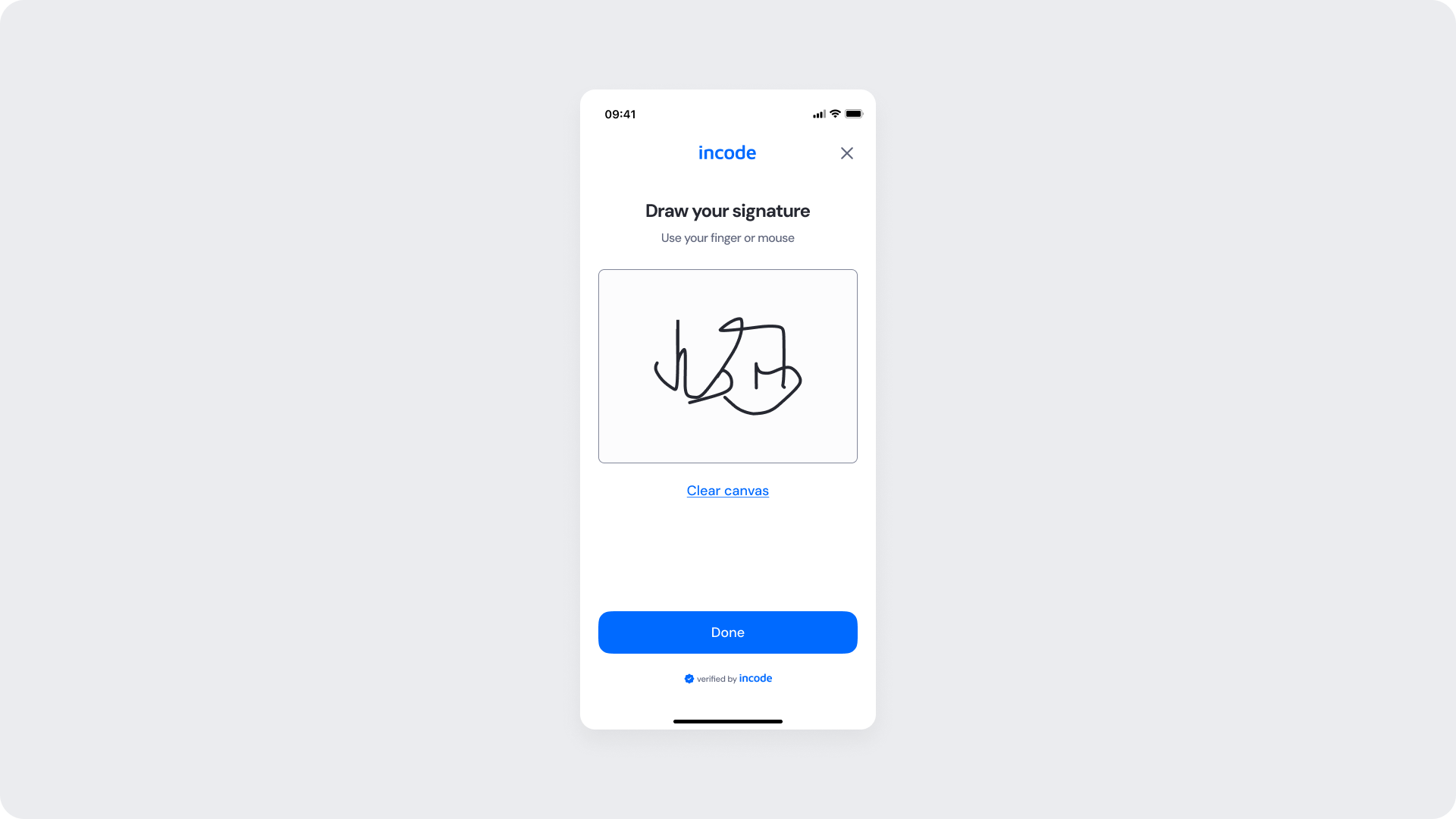
Signature filled
This screen reflects the state after the user has drawn their signature on the canvas. The "Clear canvas" link becomes active, allowing the user to erase and start over if needed. The "Done" button is now enabled and highlighted in blue, indicating the user can proceed to submit their signature.
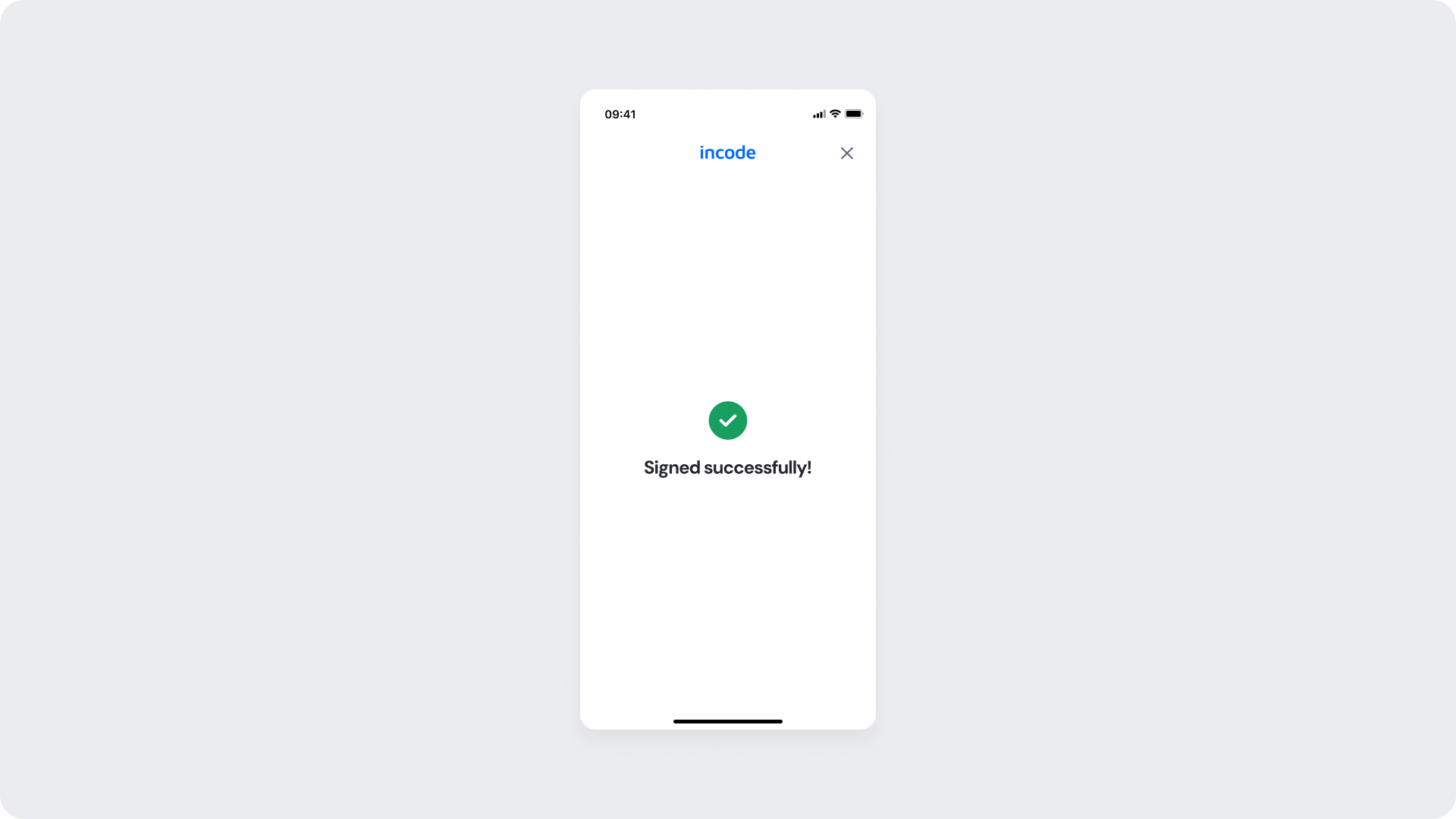
Success
Final confirmation screen of the Electronic Signature module. After the user taps "Done," the system processes the signature and displays a green checkmark icon along with a "Signed successfully!" message. This screen confirms that the signature has been captured and the process is complete. No further user action is required.