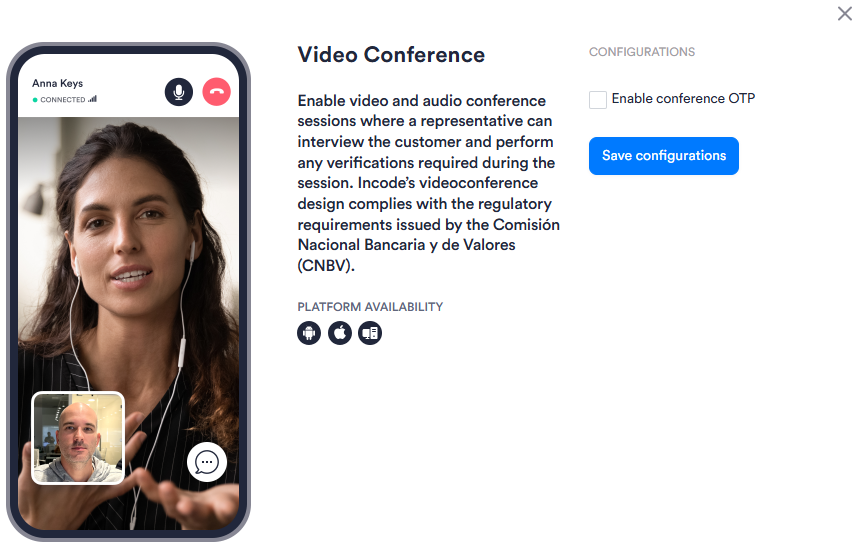
The Video Conference module connects the user with a live agent over video and audio to conduct an identity verification interview. The agent can request that documents be shown on camera and complete any verifications needed to meet regulatory or business requirements.
For an overview of this module and how it works, see Video Conference.
Supported with:
✅ Workflows | ✅ Flows
Add Video Conference to Workflows
- In the left menu, click Flow Builder > Workflows.
- Click New or select an existing Workflow.
- From the Modules list, drag and drop the Video Conference module into the builder.
- You can click the three dots > Edit on the module node to open the Configuration Options panel and adjust settings as needed.
Add Video Conference to Flows
- In the left menu, click Flow Builder > Flows.
- Click New or select an existing Flow.
- On the Select Modules tab, find the Video Conference module and click Add.
- You can click Details & Configurations to open the Configuration Options panel and adjust settings as needed.
Configuration Options
This section details all the configuration options available for this module. After changing anything, click Save Configurations before closing the configuration panel.
The options you see in your configuration may differ from those documented below. Contact your Incode representative for more information.
General
| Setting | Description |
|---|---|
| Enable conference OTP | Requires the user to verify their identity using a one-time passcode (OTP) before the video conference session begins. |