The Email Input module collects a user's email address and can confirm email ownership by sending a one-time password (OTP) to that address.
For an overview of this module and how it works, see Email Input.
Supported with:
✅ Workflows | ✅ Flows
Add Email Input to Workflows
- In the left menu, click Flow Builder > Workflows.
- Click New or select an existing Workflow.
- From the Modules list, drag and drop the Email Input module into the builder.
- You can click the three dots > Edit on the module node to open the Configuration Options panel and adjust settings as needed.
Add Email Input to Flows
- In the left menu, click Flow Builder > Flows.
- Click New or select an existing Flow.
- On the Select Modules tab, find the Email Input module and click Add.
- You can click Details & Configurations to open the Configuration Options panel and adjust settings as needed.
Configuration Options
This section details all the configuration options available for this module. After changing anything, click Save configurations before closing the configuration panel.
The options you see in your configuration may differ from those documented below. Contact your Incode representative for more information.
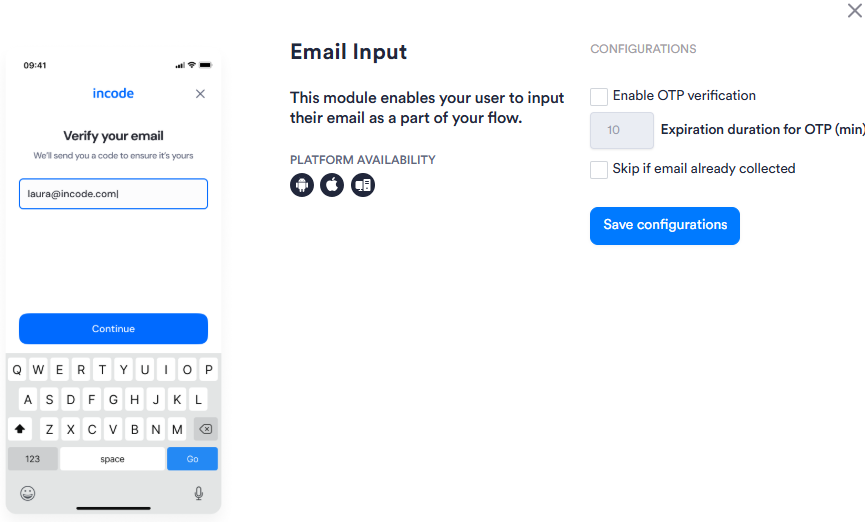
Expand to view Workflows configuration
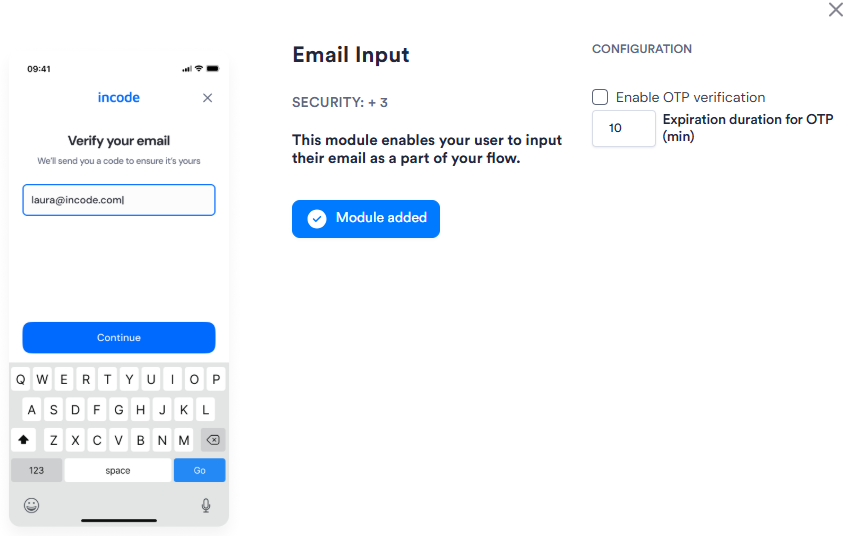
Expand to view Flows configuration
| Setting | Description |
|---|---|
| Enable OTP verification | When enabled, sends a one-time passcode to the user's email address and requires them to enter it before proceeding. |
| Expiration duration for OTP (min) | The number of minutes before an OTP expires. Default: 10. |
| Skip if email already collected Workflows only |
When enabled, skips the Email Input module if an email address has already been collected during the session. |