The Cross Check module compares a data field from one source against the same field from a second source and identifies whether the values match.
You configure one or more comparisons, each specifying the two sources, the field to compare, and a severity level that controls how strictly the values must match.
In Flows, Cross Check is a configurable setting instead of a module.
For an overview of this module and how it works, see Cross Check.
Supported with:
✅ Workflows | ✅ Flows
Add Cross Check to Workflows
- In the left menu, click Flow Builder > Workflows.
- Click New or select an existing Workflow.
- Ensure the modules that collect the data you want to compare are in your Workflow.
- From the Processes list, drag and drop the Cross Check module into the builder after those modules.
- Click the three dots > Edit on the module node to open the Configuration Options panel and adjust settings.
Add Cross Check to Flows
- In the left menu, click Flow Builder > Flows.
- Click New or select an existing Flow.
- Ensure the modules that collect the data you want to compare are in your Flow.
- Click the Settings tab.
- Under Custom Logic, click Cross Checks.
- Click Set Crosschecks.
- Click New Comparison to open the Configuration Options dialog and adjust settings.
Configuration Options
This section details all the configuration options available for this module. After changing anything, click Save Comparison before closing the configuration panel.
The options you see in your configuration may differ from those documented below. Contact your Incode representative for more information.
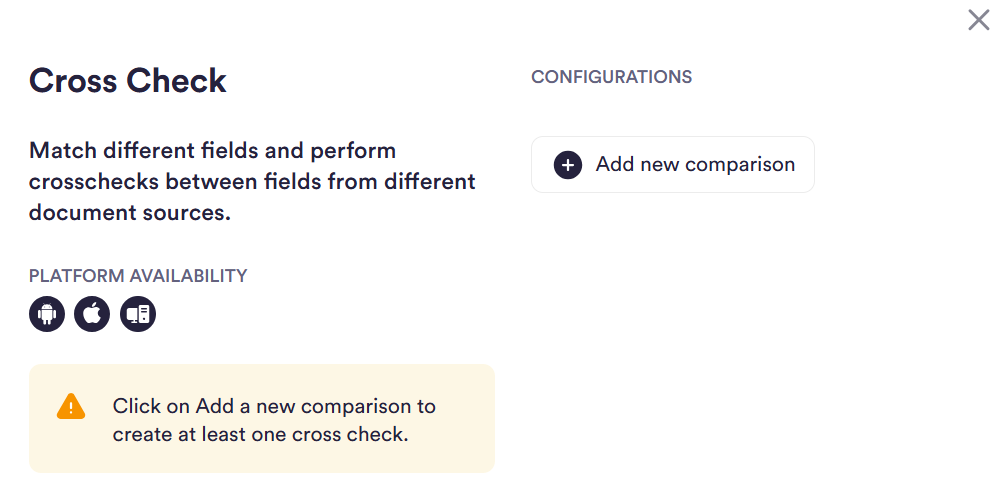
Click Add new comparison to create a comparison. Each comparison has the following settings:
| Setting | Description |
|---|---|
| Crosscheck name | A label for this comparison. Used to identify the comparison in results and conditions. Maximum 30 characters. Cannot contain special characters: !, @, #, $, %, ^, &, *, (, ), _, -, or /. |
| First document source | The first source to use in the comparison. You can only select a source available from modules already in the Flow or Workflow. |
| Second document source | The second source to use in the comparison. You can only select a source available from modules already in the Flow or Workflow. |
| Left field | The field from the first document source to compare. |
| Right field | The field from the second document source to compare. |
| Comparison severity | Controls how strictly the two field values must match. Options: Ultra low, Low, Medium, High, Exact. See Severity Levels for details. |
View an example comparison
This example compares the address in the user's ID to the address in their Proof of Address document.
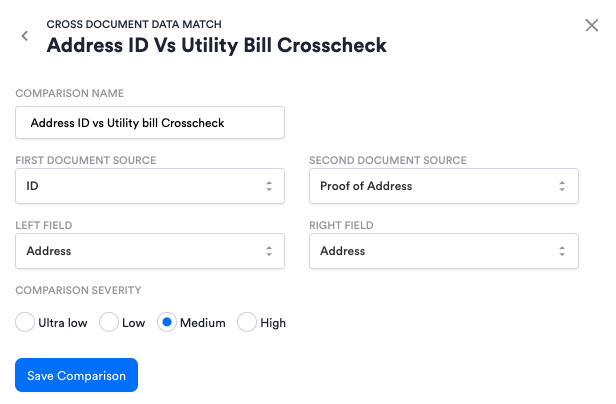
After configuring each setting, click Save Comparison. You can add multiple comparisons to a single Cross Check module using Add new comparison. Similarly, you can add multiple comparisons to the Cross Check setting in Flows using New Comparison. Each comparison is configured and saved independently.
Severity Levels
Severity levels control how strictly two values must match. Higher severity levels require a closer match. Lower levels allow more variation between values, including typos, spelling variants, or transliterations.
| Severity level | Allowance |
|---|---|
| Exact | No difference allowed |
| High | ~5–12% difference allowed |
| Medium | ~10–18% difference allowed |
| Low | ~15–27% difference allowed |
| Ultra low | ~20–35% difference allowed |