# Deepsight Overview and Implementation
Incode Deepsight is the AI-powered fraud prevention suite that protects every step of identity verification experiences from deepfakes and identity spoofing injections. This guide will help you enable Deepsight in your integration.
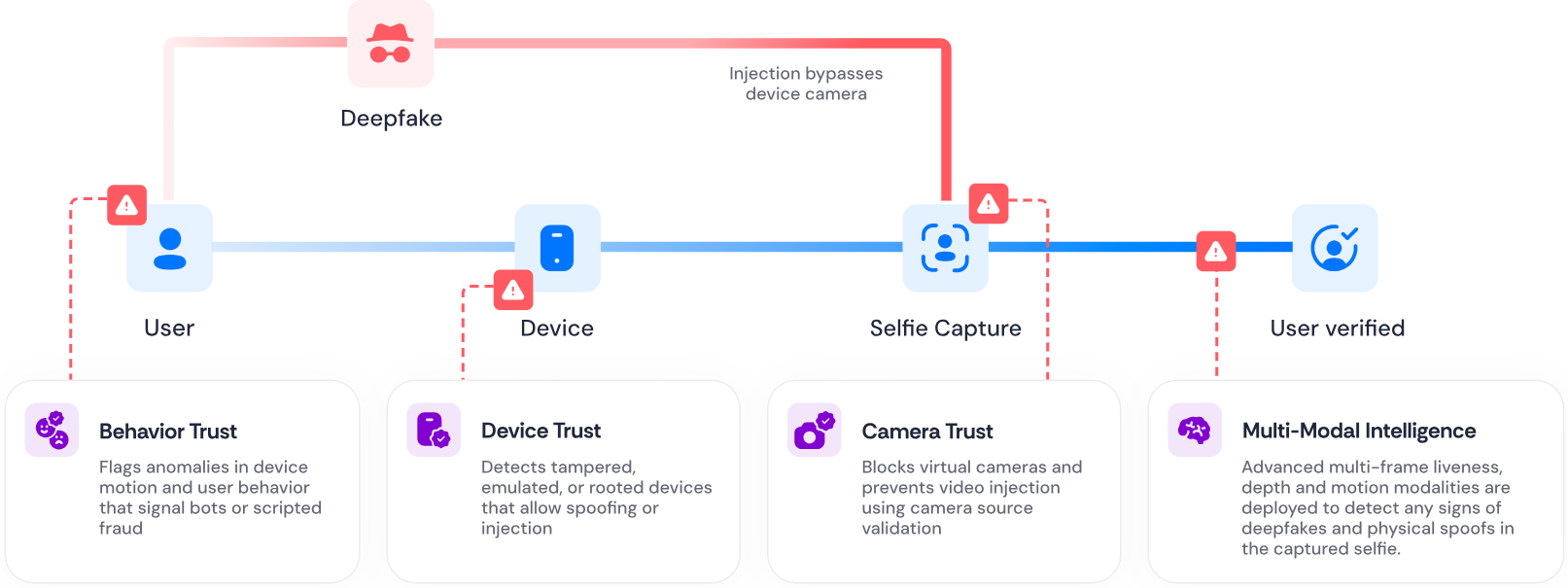
The diagram illustrates four trust layers Deepsight applies across the onboarding flow, from left to right:
- **User → Behavior Trust:** Flags anomalies in device motion and user behavior that signal bots or scripted fraud.
- **Device → Device Trust:** Detects tampered, emulated, or rooted devices that allow spoofing or injection.
- **Selfie Capture → Camera Trust:** Blocks virtual cameras and prevents video injection using camera source validation.
- **User Verified → Multi-Modal Intelligence:** Advanced multi-frame liveness, depth, and motion modalities deployed to detect deepfakes and physical spoofs in the captured selfie.
A red arrow labeled "Injection bypasses device camera" shows the attack vector a deepfake attempts — entering directly at the Selfie Capture stage, bypassing the device layer. Deepsight's Camera Trust and Multi-Modal Intelligence layers are positioned to intercept this attack.
# Prerequisites
Deepsight requires additional licensing. After you have purchased Deepsight, contact your Incode Admin to enable the Deepsight feature flag for the requested organization.
Before using Deepsight, you should be familiar with concepts such as multimodal, spoof, evasion, stream frames, jailbroken phones, and deepfakes.
If you have any questions, contact your Incode Admin for assistance.
# API Changes With Deepsight
When Deepsight is enabled, the response structure of the `GET /omni/get/score` API changes.
With Deepsight OFF, the response includes these sections:
- `liveness`
- `deviceRisk`
- `behavioralRisk` sections.
With Deepsight ON, the response includes a `deepsight` section containing new and enhanced fields that build on the original fields:
- `liveness` → `multimodalIntelligence` + new fields. See more [below](https://www.notion.so/How-to-Enable-Deepsight-Developer-Guide-30c4c3caef4980ab8cbfc2cbae8e110c?pvs=21).
- `deviceRisk` → `deviceTrust`
- `behavioralRisk` → `behavioralTrust`
- `cameraTrust` (new field)
### Multi-modal Intelligence
Multi-modal intelligence includes attack detection checks for face domain and attack vectors for document domain.
**Face domain:**
- **Physical Spoof Detection**: Catches 2D masks, 3D masks, paper replays, and screen replays. Depth Feed Analysis: Confirms 3D structures.
- **Digital Spoof Detection**: Catches deepfakes, digitally generated or manipulated images or videos.
- **Evasion**: Catches extreme expressions, extreme makeup, and paraphernalia.
**Document domain:**
- **AI Generated Document**: Catches digitally-generated or manipulated document images.
# Implementation
This section contains instructions for implementing Deepsight based on the platform you are using. Use the tabs to switch to the instructions for your platform.
# Web SDK
1. Update Web SDK to version 1.80.0 or higher.
2. Contact your Incode representative to request Deepsight for your organization.
3. Enable Deepsight in Workflow or Flow settings:
1. In the Dashboard left navigation, click **Workflows** or **Flows**, depending on your configuration.
2. Locate the Workflow or Flow you want to enable Deepsight for.
1. For Workflows, click to open it, then click **Edit**.
2. For Flows, click **Edit**.
3. Click to switch to the Settings tab.
4. At the top of the settings page, click to toggle Deepsight ON. If you don’t see Deepsight here, contact your Incode representative to ensure your organization is configured to use Deepsight.
5. Click **Save Changes**.
4. Call `renderCaptureFace` or `renderCaptureId` SDK methods. Example of `renderCaptureFace` usage below:
```javascript
// When rendering the camera for selfie capture
const container = document.getElementById("face-capture-container");
IncodeSDK.renderCaptureFace(container, {
session={session}
onSuccess: async (response) => {
// Unlike renderCamera, renderCaptureFace will not call processFace automatically
const processFaceResponse = await IncodeSDK.processFace({ token: session.token });
// go to next step
},
onError: (error) = {
// handle error
},
});
// When rendering the camera for ID capture
const container = document.getElementById("id-capture-container");
IncodeSDK.renderCaptureId(container, {
session: session,
onSuccess: (response) => {
// ID capture completed successfully
},
onError: (error) => {
// handle error
},
});
```
# iOS SDK
## Standard Mode
1. Update SDK to version 5.35.0 or higher.
2. Contact your Incode representative to request Deepsight for your organization.
3. Enable Deepsight in Workflow or Flow settings:
1. In the Dashboard left navigation, click **Workflows** or **Flows**, depending on your configuration.
2. Locate the Workflow or Flow you want to enable Deepsight for.
1. For Workflows, click to open it, then click **Edit**.
2. For Flows, click **Edit**.
3. Click to switch to the Settings tab.
4. At the top of the settings page, click to toggle Deepsight ON. If you don’t see Deepsight here, contact your Incode representative to ensure your organization is configured to use Deepsight.
5. Click **Save Changes**.
4. Copy the ID for the Workflow or Flow you added Deepsight to. Provide this ID as a `configurationId` to the methods in the next step. More info [here](https://developer.incode.com/docs/user_guide#2-configure-the-onboarding-session).
5. Use `startFlow()` , `startWorkflow()` , `startOnboarding()` or `startOnboardingSection()` APIs to access the feature
**Important Considerations**
* In Standard mode, Video Liveness recording is only available with `startFlow()` or `startWorkflow()` APIs
## Capture-Only Mode
To enable Deepsight within the Selfie module, specify the `videoLivenessRecording` param:
```javascript
let flowConfig = IncdOnboardingFlowConfiguration()
flowConfig.addSelfieScan(videoLivenessRecording: true)
```
No additional configuration is needed for the ID module in capture-only.
**Note**: When Deepsight is enabled, it overrides stream frames and session recording settings.
**Important Considerations**
* In Capture-Only mode, the video file path is returned in `SelfieScanResult.videoFileURL`
* In Capture-Only mode, to get the results from Deepsight, you’ll need to call into Incode’s backend with the `metadata` string received in the `IdScanResult` or `SelfieScanResult` objects. This process is described [here](https://developer.incode.com/docs/migration-guide#4-handling-metadata-from-idscanresult-and-selfiescanresult).
# Android SDK
## Standard Mode
1. Update SDK version 5.38.0 or later.
2. Contact your Incode representative to request Deepsight for your organization.
3. Enable Deepsight in Workflow or Flow settings:
1. In the Dashboard left navigation, click **Workflows** or **Flows**, depending on your configuration.
2. Locate the Workflow or Flow you want to enable Deepsight for.
1. For Workflows, click to open it, then click **Edit**.
2. For Flows, click **Edit**.
3. Click to switch to the Settings tab.
4. At the top of the settings page, click to toggle Deepsight ON. If you don’t see Deepsight here, contact your Incode representative to ensure your organization is configured to use Deepsight.
5. Click **Save Changes**.
4. Copy the ID for the Workflow or Flow you added Deepsight to. Provide this ID as a `configurationId`to the methods in next step
5. Use `startFlow()` , `startWorkflow()` , `startOnboarding()` or `startOnboardingSection()` APIs to access the feature
## Capture-Only Mode
To enable Deepsight within the Selfie module, call the `setVideoLivenessRecordingEnabled` method when adding the `SelfieScan` module:
```java
FlowConfig flowConfig = new FlowConfig.Builder()
.addSelfieScan(new SelfieScan.Builder()
.setVideoLivenessRecordingEnabled(true)
.build()
)
.build();
```
No additional configuration is needed for the ID module in capture-only.
**Note**: When Video Liveness is enabled through Deepsight, it overrides `SelfieScan.streamFramesEnabled` and `FlowConfig.isRecordSession` settings.
**Important Considerations**
* In Capture-Only mode, the video file path is returned in `SelfieScanResult.videoFilePath`
* In Capture-Only mode, to get the results from Deepsight, you’ll need to call into Incode’s backend with the `metadata` string received int the `IdScanResult` or `SelfieScanResult` objects. This process is described [here](https://developer.incode.com/docs/migration-guide#4-handling-metadata-from-idscanresult-and-selfiescanresult).
# React Native SDK
React Native currently only supports Standard Mode for Deepsight.
## Standard Mode
1. Update SDK version to 9.4.0 or later
2. Contact your Incode representative to request Deepsight for your organization.
3. Enable Deepsight in Workflow or Flow settings:
1. In the Dashboard left navigation, click **Workflows** or **Flows**, depending on your configuration.
2. Locate the Workflow or Flow you want to enable Deepsight for.
1. For Workflows, click to open it, then click **Edit**.
2. For Flows, click **Edit**.
3. Click to switch to the Settings tab.
4. At the top of the settings page, click to toggle Deepsight ON. If you don’t see Deepsight here, contact your Incode representative to ensure your organization is configured to use Deepsight.
5. Click **Save Changes**.
4. Copy the ID for the Workflow or Flow you added Deepsight to. Provide this ID as a `configurationId`to the methods in next step
5. Use `startFlow()` , `startWorkflow()` , `startOnboarding()` or `startOnboardingSection()` APIs to access the feature.
# Flutter SDK
Flutter currently only supports Standard Mode for Deepsight.
## Standard Mode
1. Simply update to SDK version 4.8.0 or later.
2. Contact your Incode representative to request Deepsight for your organization.
3. Enable Deepsight in Workflow or Flow settings:
1. In the Dashboard left navigation, click **Workflows** or **Flows**, depending on your configuration.
2. Locate the Workflow or Flow you want to enable Deepsight for.
1. For Workflows, click to open it, then click **Edit**.
2. For Flows, click **Edit**.
3. Click to switch to the Settings tab.
4. At the top of the settings page, click to toggle Deepsight ON. If you don’t see Deepsight here, contact your Incode representative to ensure your organization is configured to use Deepsight.
5. Click **Save Changes**.
4. Copy the ID for the Workflow or Flow you added Deepsight to. Provide this ID as a `configurationId`to the methods in next step.
5. Use `startFlow()` , `startWorkflow()` , `startOnboarding()` or `startOnboardingSection()` APIs to access the feature.
# Cordova SDK
Cordova currently only supports Standard Mode for Deepsight.
## Standard Mode
1. Simply update to SDK version 2.8.0 or later.
2. Contact your Incode representative to request Deepsight for your organization.
3. Enable Deepsight in Workflow or Flow settings:
1. In the Dashboard left navigation, click **Workflows** or **Flows**, depending on your configuration.
2. Locate the Workflow or Flow you want to enable Deepsight for.
1. For Workflows, click to open it, then click **Edit**.
2. For Flows, click **Edit**.
3. Click to switch to the Settings tab.
4. At the top of the settings page, click to toggle Deepsight ON. If you don’t see Deepsight here, contact your Incode representative to ensure your organization is configured to use Deepsight.
5. Click **Save Changes**.
4. Copy the ID for the Workflow or Flow you added Deepsight to. Provide this ID as a `configurationId` to the methods in next step.
5. Use `startOnboardingSection` method:
```javascript
cordova.exec(function(winParam) {
console.log("Section completed successfully: " + winParam);
}, function(err) {
console.log("Error: " + err);
// handle the error by showing some UI or alert.
}, "Cplugin", "startOnboardingSection", ["addId", "addSelfieScan"]);
```