This module screens business entities against global sanctions lists, Politically Exposed Persons (PEP) databases, and adverse media. It is a processing node and must be added to a Workflow or Flow after business data has been collected.
For an overview of this module and how it works, see Watchlist Business.
{/ This module being a processing node makes sense to me, but it isn't listed under the Processes section in the Workflow UI. It's at the end of the Modules section. TODO: Confirm if it's a processing node. /}
Supported with:
✅ Workflows | ✅ Flows
Add Watchlist Business to Workflows
- In the left menu, click Flow Builder > Workflows.
- Click New or select an existing Workflow.
- From the Modules list, drag and drop the Watchlist Business module into the builder.
- You can click the three dots > Edit on the module node to open the Configuration Options panel and adjust settings as needed.
Add Watchlist Business to Flows
- In the left menu, click Flow Builder > Flows.
- Click New or select an existing Flow.
- On the Select Modules tab, find the Watchlist Business module and click Add.
- You can click Details & Configurations to open the Configuration Options panel and adjust settings as needed.
Configuration Options
This section details all the configuration options available for this module. After changing anything, click Save Configurations before closing the configuration panel.
The options you see in your configuration may differ from those documented below. Contact your Incode Representative for more information.
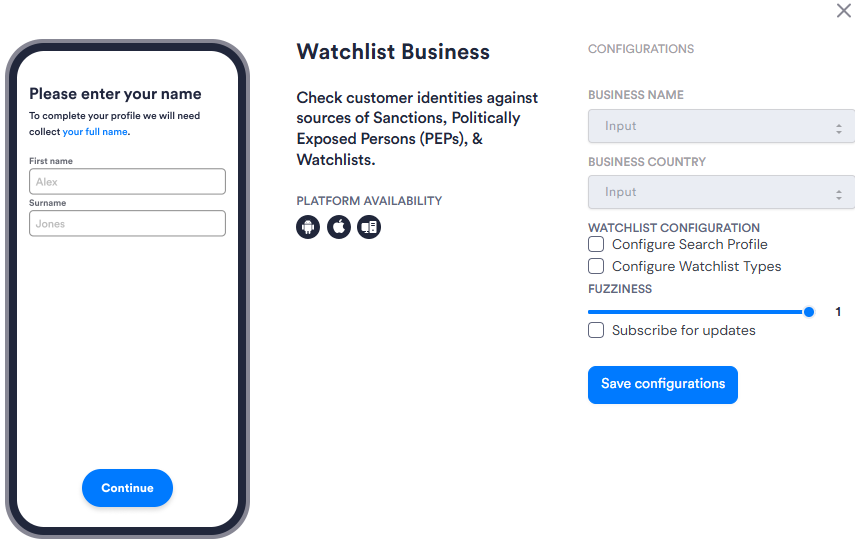
| Setting | Description |
|---|---|
| Business Name | The name of the business to search. This field is mandatory. The value is pulled from data collected earlier in the Session or can be supplied directly via API. |
| Business Country | The country or countries of operation used to filter search results. This field is mandatory. Filters apply to PEP entities and entities with at least one matching country value. Entities on sanctions lists appear in results regardless of the country filter. Entities with adverse media mentions only, or with no country assigned, are also not affected by this filter. |
| Configure Search Profile | Uses a search profile defined in your provider's configuration to determine which watchlist types are searched. You can configure either a search profile or watchlist types, not both. |
| Configure Watchlist Types | Allows you to select one or more specific watchlist types to search. Options include sanction, warning, fitness-probity, pep, pep-class-1 through pep-class-4, and FATF-aligned adverse media categories. You can configure either a search profile or watchlist types, not both. |
| Fuzziness | Controls how closely search results must match the supplied business name. Ranges from 0.0 (strict matching) to 1.0 (loose matching). Default: 1.0. |
| Subscribe for updates | Subscribes to ongoing updates for this search. When the search results are updated, Incode sends a notification to the webhook URL configured in your organization's Dashboard settings. |