Required role: Admin or higher, or Executive with custom permissions including users:all.
The Users page lists all the users in your Dashboard organization, as well as their email and phone number. From this page, you can:
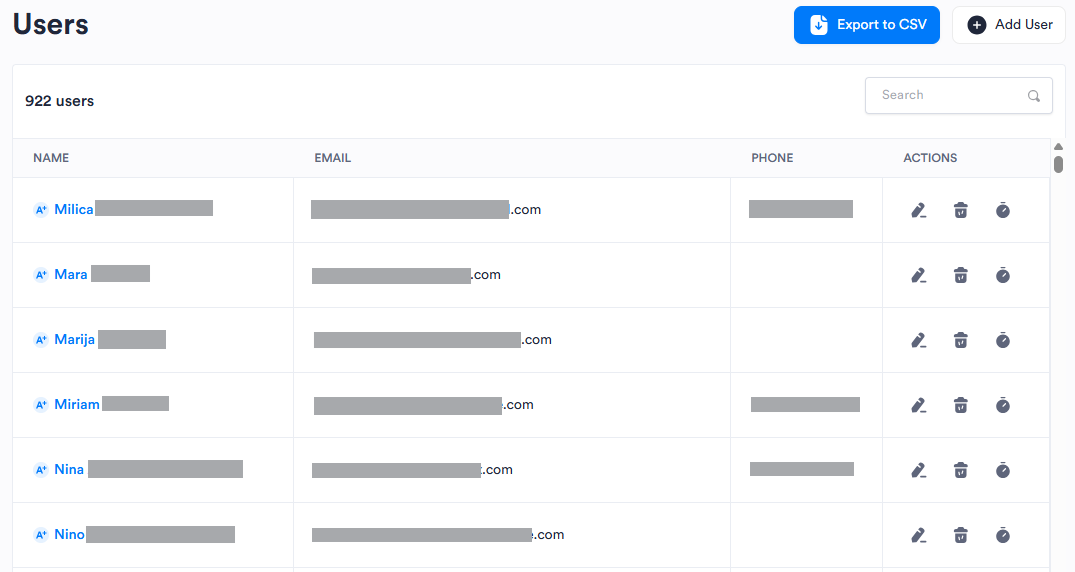
Create Users
In the left menu, click Users.
Click Add User.
Enter the user's Name, Email, and an 11-digit Phone number.
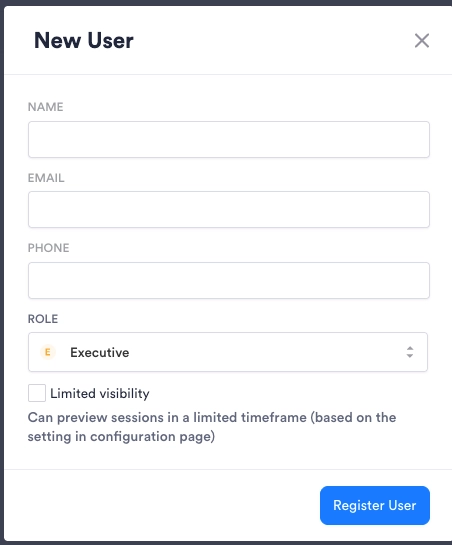
Use the drop-down to select a Role. See Roles & Permissions for details.
If the role you selected requires additional configuration, use the drop-downs accordingly.
Select Limited Visibility if you want the user to only see Sessions from a limited timeframe. You configure this timeframe in Configuration > General.
Click Register User.
After the user is created, they can access Dashboard based on the permissions defined by their role.
Edit Existing Users
In the left menu, click Users.
Browse or search for the user you want to edit.
In the Actions column, click Edit.
Modify the user's information. All fields are editable.
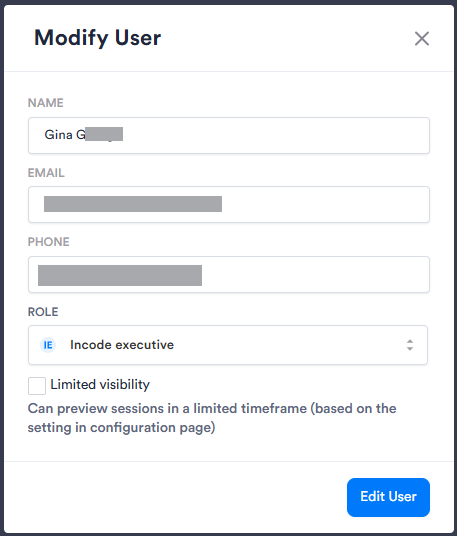
Click Edit User. A dialog appears confirming your changes were made.
View User Activity Log
- In the left menu, click Users.
- Browse or search for the user you want.
- In the Actions column, click See Log.
- In the Activity Log panel, use the drop-down to select a date range:
- Week to Date: Shows user activity from the most recent Monday to the current day.
- Last Week: Shows user activity from the previous full week.
- Month to Date: Shows user activity from the start of the current month to the current day.
- Last Month: Shows user activity from the previous full month.
- Year to Date: Shows user activity from the start of the current calendar year to the current day.
- Last Year: Shows user activity from the previous calendar year.
- Click X to close the Activity Log panel.
Export User List
You can export the list of users to a CSV file. This file includes all users in your organization, along with their creation timestamp, phone number, role, and email. If the user has the Executive with custom permissions role, the file also includes any specific permissions they're assigned. The file is automatically saved to your device's default download location.
- In the left menu, click Users.
- Click Export to CSV. A notification appears with the message "Your download will start soon."
Delete Users
Danger
You cannot recover a deleted user.
- In the left menu, click Users.
- Browse or search for the user you want.
- In the Actions column, click Delete.
- In the confirmation dialog, click Delete.
After the user is deleted, they can no longer access Dashboard.