# Cross Check
The Cross Check module compares a data field from one source against the same field from a second source and identifies whether the values match.
You configure one or more comparisons, each specifying the two sources, the field to compare, and a severity level that controls how strictly the values must match.
In Flows, Cross Check is a configurable setting instead of a module.
For an overview of this module and how it works, see [Cross Check](https://developer.incode.com/docs/cross-check).
## Supported with:
:white_check_mark: Workflows | :white_check_mark: Flows
## Add Cross Check to Workflows
1. In the left menu, click **Flow Builder** > **Workflows**.
2. Click **New** or select an existing Workflow.
3. Ensure the modules that collect the data you want to compare are in your Workflow.
4. From the **Processes** list, drag and drop the **Cross Check** module into the builder after those modules.
5. Click the three dots > **Edit** on the module node to open the [Configuration Options](#configuration-options) panel and adjust settings.
## Add Cross Check to Flows
1. In the left menu, click **Flow Builder** > **Flows**.
2. Click **New** or select an existing Flow.
3. Ensure the modules that collect the data you want to compare are in your Flow.
4. Click the **Settings** tab.
5. Under Custom Logic, click **Cross Checks**.
6. Click **Set Crosschecks**.
7. Click **New Comparison** to open the [Configuration Options](#configuration-options) dialog and adjust settings.
## Configuration Options
This section details all the configuration options available for this module. After changing anything, click **Save Comparison** before closing the configuration panel.
The options you see in your configuration may differ from those documented below. Contact your Incode representative for more information.
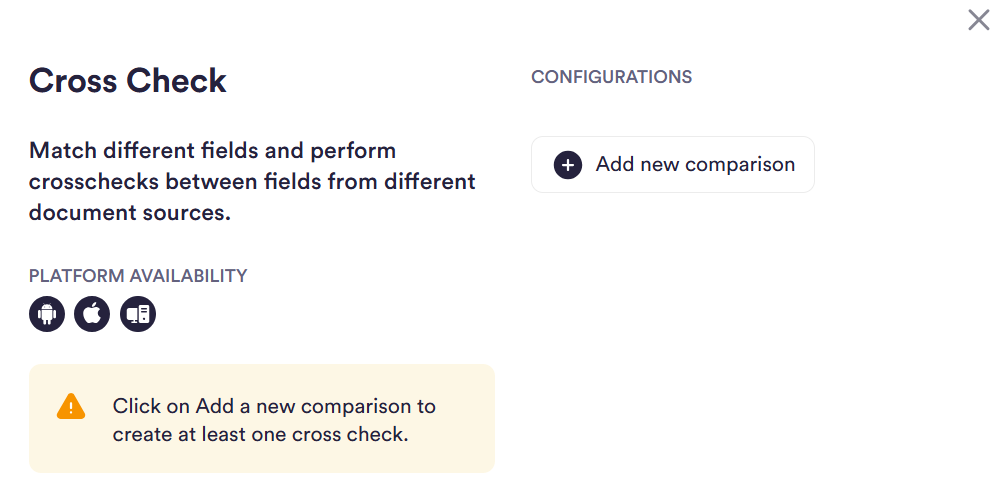
Click **Add new comparison** to create a comparison. Each comparison has the following settings:
| Setting | Description |
| ---------------------------- | --------------------------------------------------------------------------------------------------------------------------------------------------------------------------------------------------------------------- |
| **_Crosscheck name_** | A label for this comparison. Used to identify the comparison in results and conditions. Maximum 30 characters. Cannot contain special characters: `!`, `@`, `#`, `$`, `%`, `^`, `&`, `*`, `(`, `)`, `_`, `-`, or `/`. |
| **_First document source_** | The first source to use in the comparison. You can only select a source available from modules already in the Flow or Workflow. |
| **_Second document source_** | The second source to use in the comparison. You can only select a source available from modules already in the Flow or Workflow. |
| **_Left field_** | The field from the first document source to compare. |
| **_Right field_** | The field from the second document source to compare. |
| **_Comparison severity_** | Controls how strictly the two field values must match. Options: _Ultra low_, _Low_, _Medium_, _High_, _Exact_. See [Severity Levels](#severity-levels) for details. |
This example compares the address in the user's ID to the address in their Proof of Address document.
After configuring each setting, click **Save Comparison**. You can add multiple comparisons to a single Cross Check module using **Add new comparison**. Similarly, you can add multiple comparisons to the Cross Check setting in Flows using **New Comparison**. Each comparison is configured and saved independently.
### Severity Levels
Severity levels control how strictly two values must match. Higher severity levels require a closer match. Lower levels allow more variation between values, including typos, spelling variants, or transliterations.
| Severity level | Allowance |
| -------------- | --------------------------- |
| Exact | No difference allowed |
| High | \~5–12% difference allowed |
| Medium | \~10–18% difference allowed |
| Low | \~15–27% difference allowed |
| Ultra low | \~20–35% difference allowed |